Andromate Studio - Overview
Andromate Studio is the visual editor where you build workflows: drag tasks onto a canvas, connect them, and configure each one. It opens in its own browser tab, either from the web portal (creating or editing a workflow) or directly from a workflow's link.
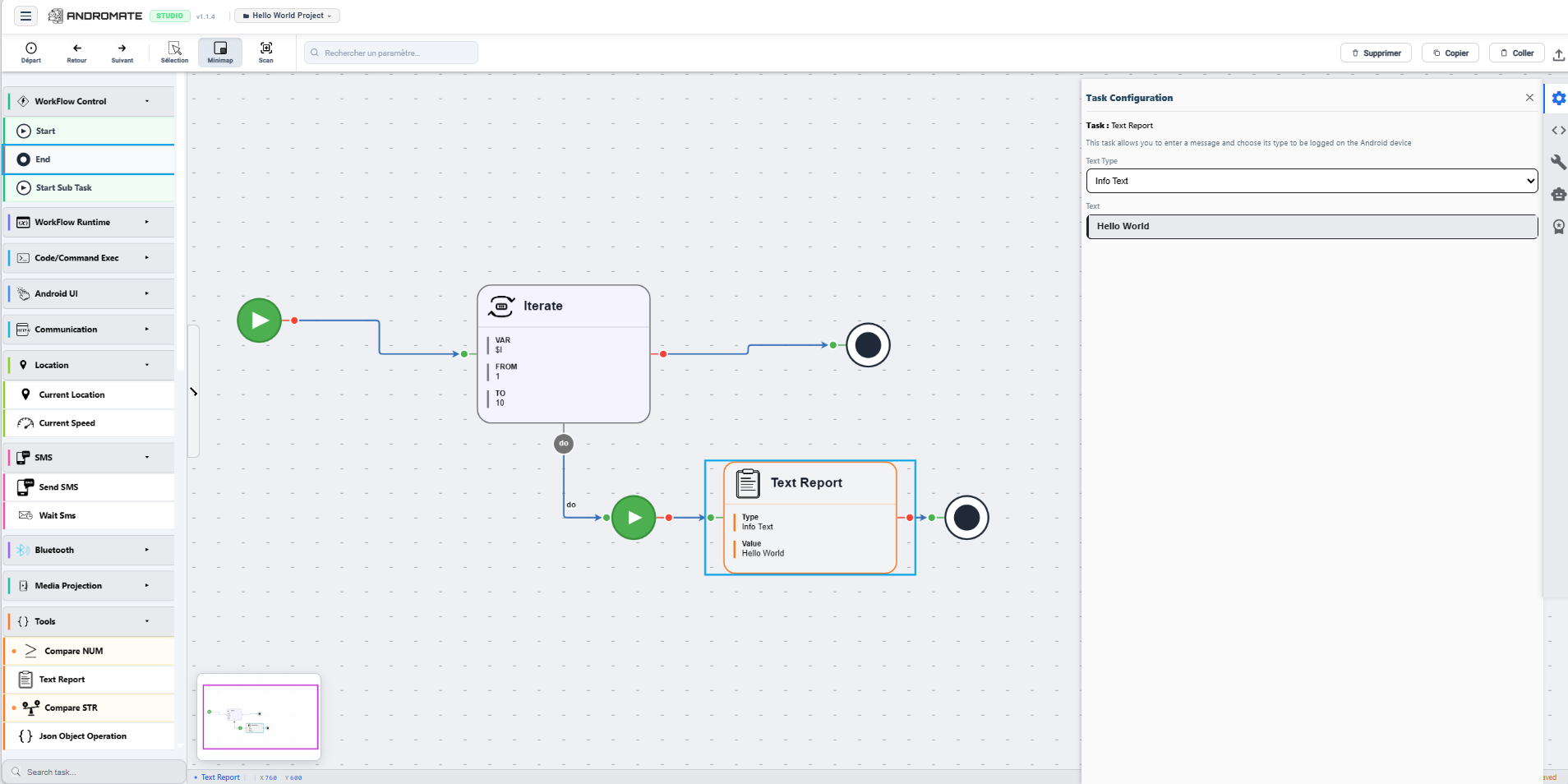
The screen is split into four zones:
- Top bar & toolbar - project name, undo/redo, view controls and edit actions. See Toolbar & Menu.
- Task palette (left) - every available task, grouped by category, ready to drag onto the canvas. See Task Palette.
- Canvas (center) - the workflow itself: tasks as boxes, connected by arrows that define execution order.
- Task Configuration panel (right) - the settings for whichever task is currently selected on the canvas.
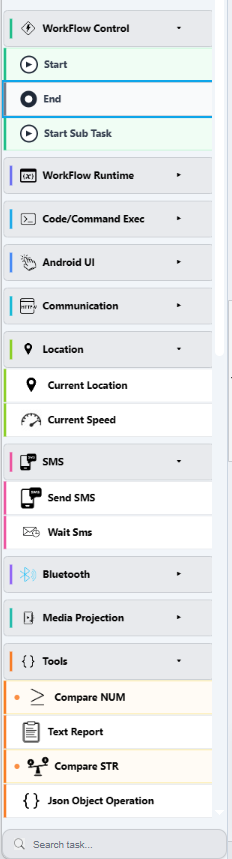
Task palette
Drag a task from here onto the canvas to add it to the workflow.
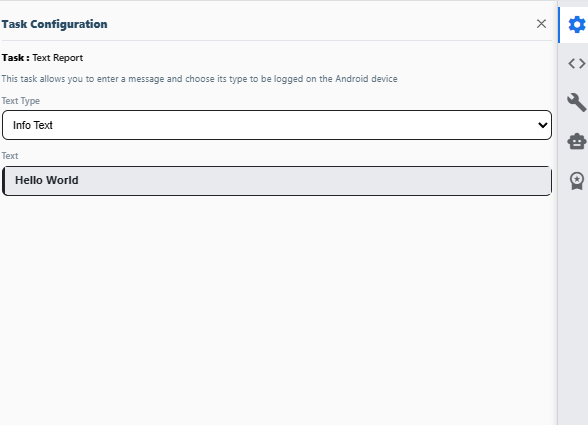
Task Configuration panel
Click a task on the canvas to select it - its settings appear here. This example shows a Text Report task with its Text Type and Text fields filled in.
What's next
- Toolbar & Menu - every button, what it does
- Task Palette - task categories, cross-referenced with the Tasks overview
- Create a Workflow - building a workflow end to end, including variables