Launch Your First Job
This page covers your first two actions on the web portal: creating a project, then creating and running your first job. By the end you will have a real execution to look at.
Before you start
- You have an AndroMate account and are signed in to the web portal.
- A device is registered - you will need it to run the job.
1. Create a new project
A project is the workspace that holds your devices, workflows and jobs. Everything you do in the portal happens inside one project at a time.
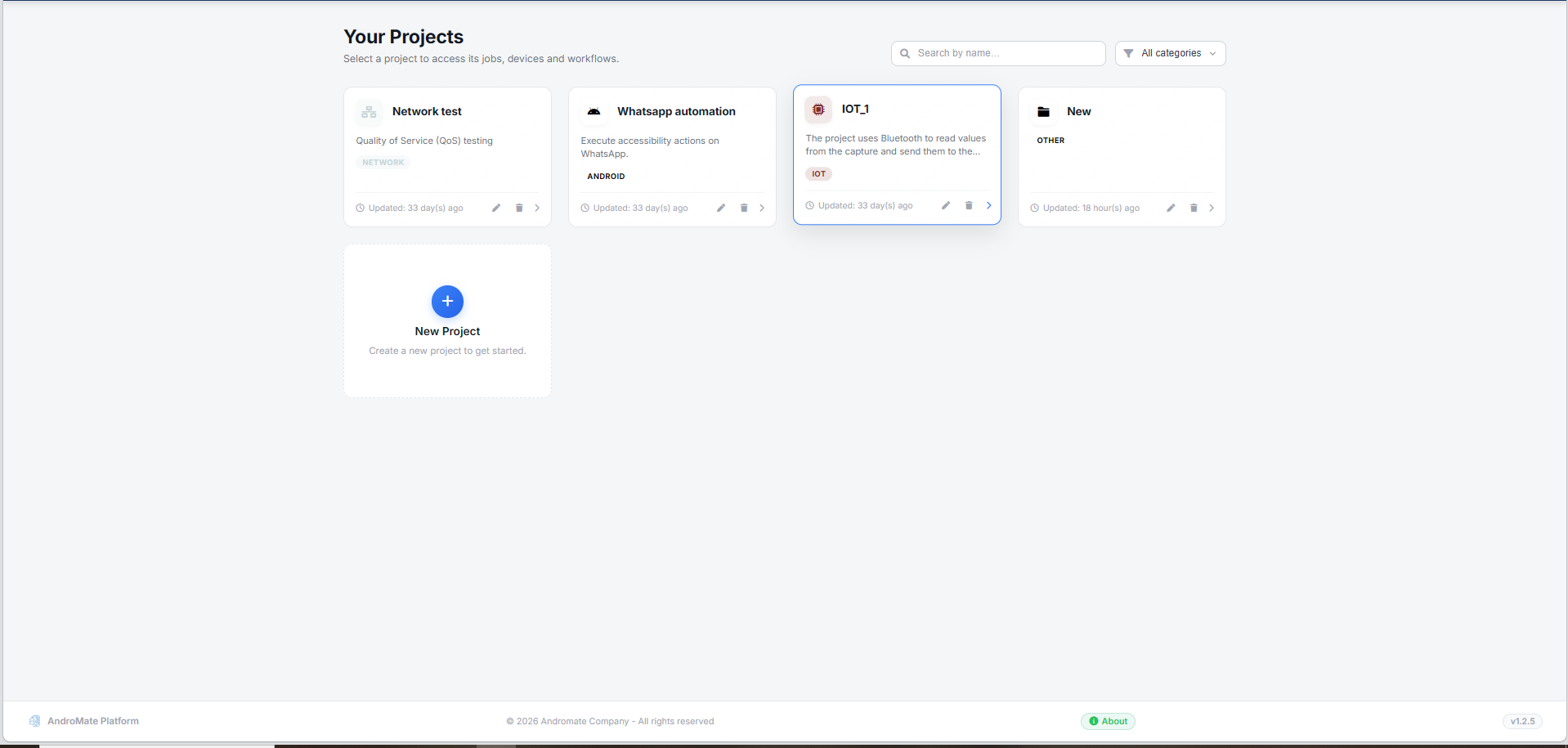
- After signing in, the portal opens on Your Projects. If you already have projects, they are listed as cards; otherwise the page is empty.
- Click the + New Project card (or button).
-
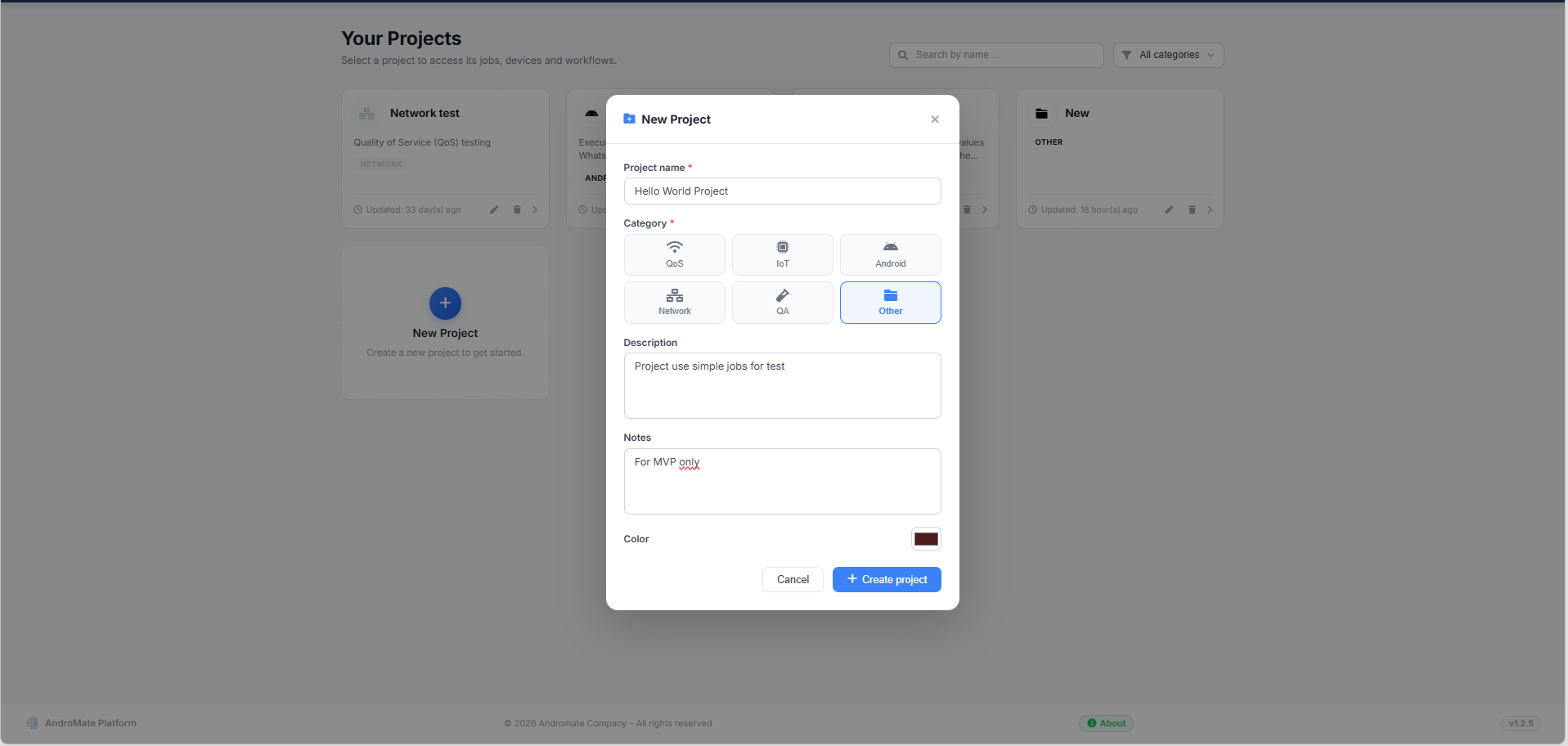
Fill in the form:
Field Required Description Project name Yes A short, recognisable name (e.g. QoS Test) Category Yes Pick the category that best describes the project: QoS, IoT, Android, Network, QA, Other Description No A short summary of what the project is for Notes No Internal notes or context Color No A color to tell projects apart at a glance -
Click Create project.
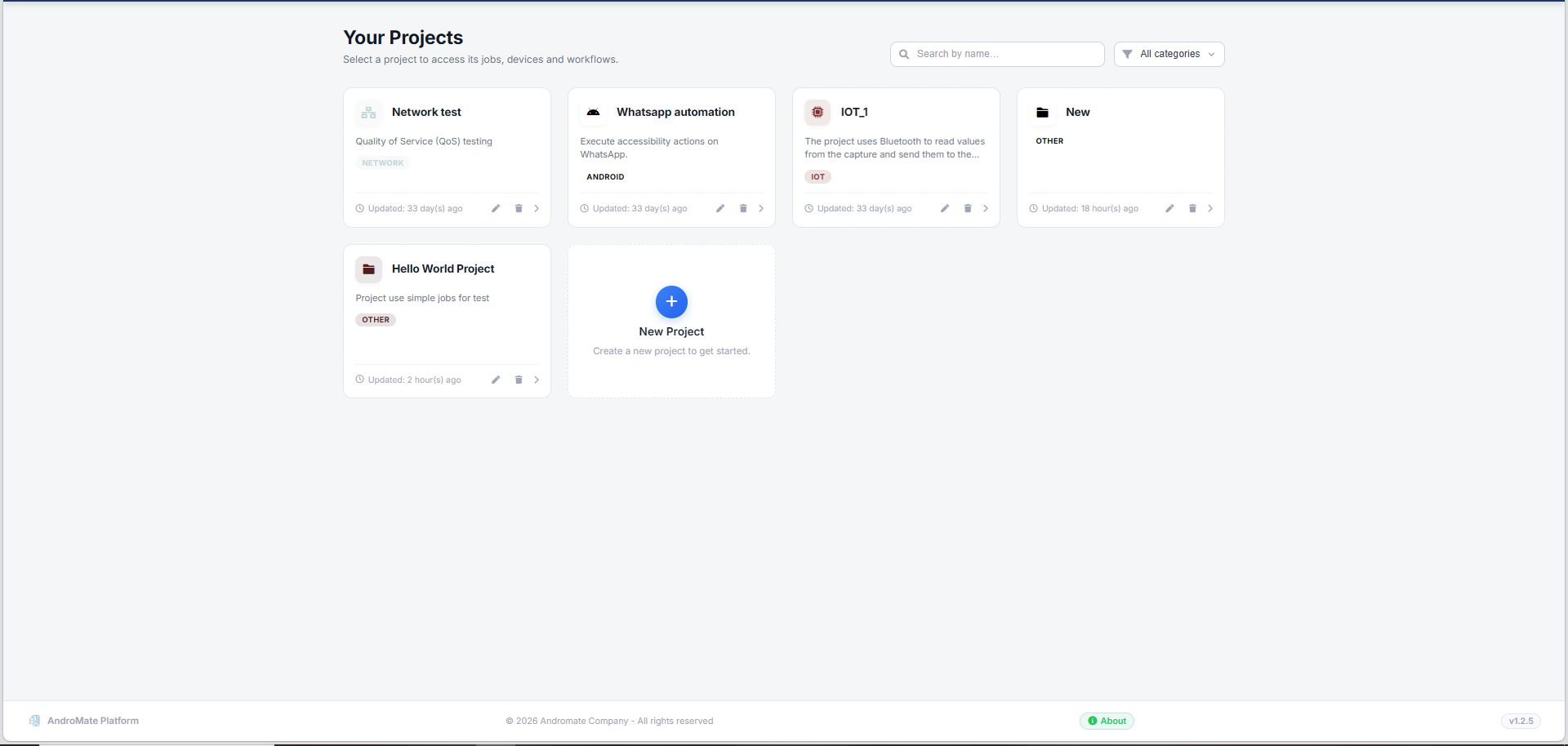
The new project appears as a card on Your Projects.
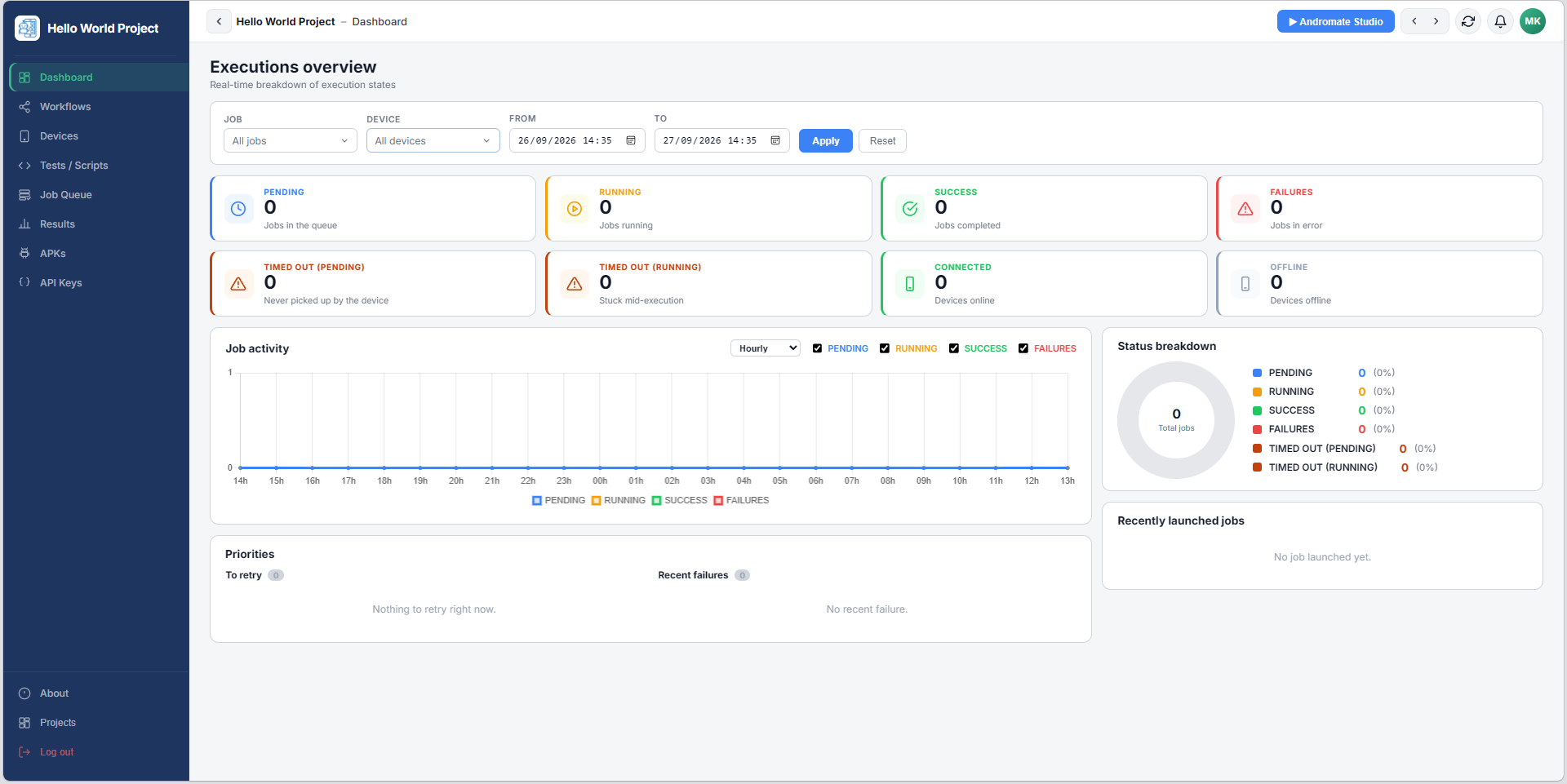
Click it to open it - the portal switches to that project and takes you to its Dashboard. Every page you visit next (Devices, Workflows, Tests/Scripts...) works inside this project until you switch to another one.
Tip
You can have several projects, for example to separate testing from production, or one project per client. Switch between them from Your Projects.
2. Create your first job
A job is what you run on a device: a name, a category, and a workflow that defines what actually happens. This is where AndroMate's two main building blocks meet - the job you configure here, and the workflow you build in Andromate Studio.
- Open Tests / Scripts in the left menu.
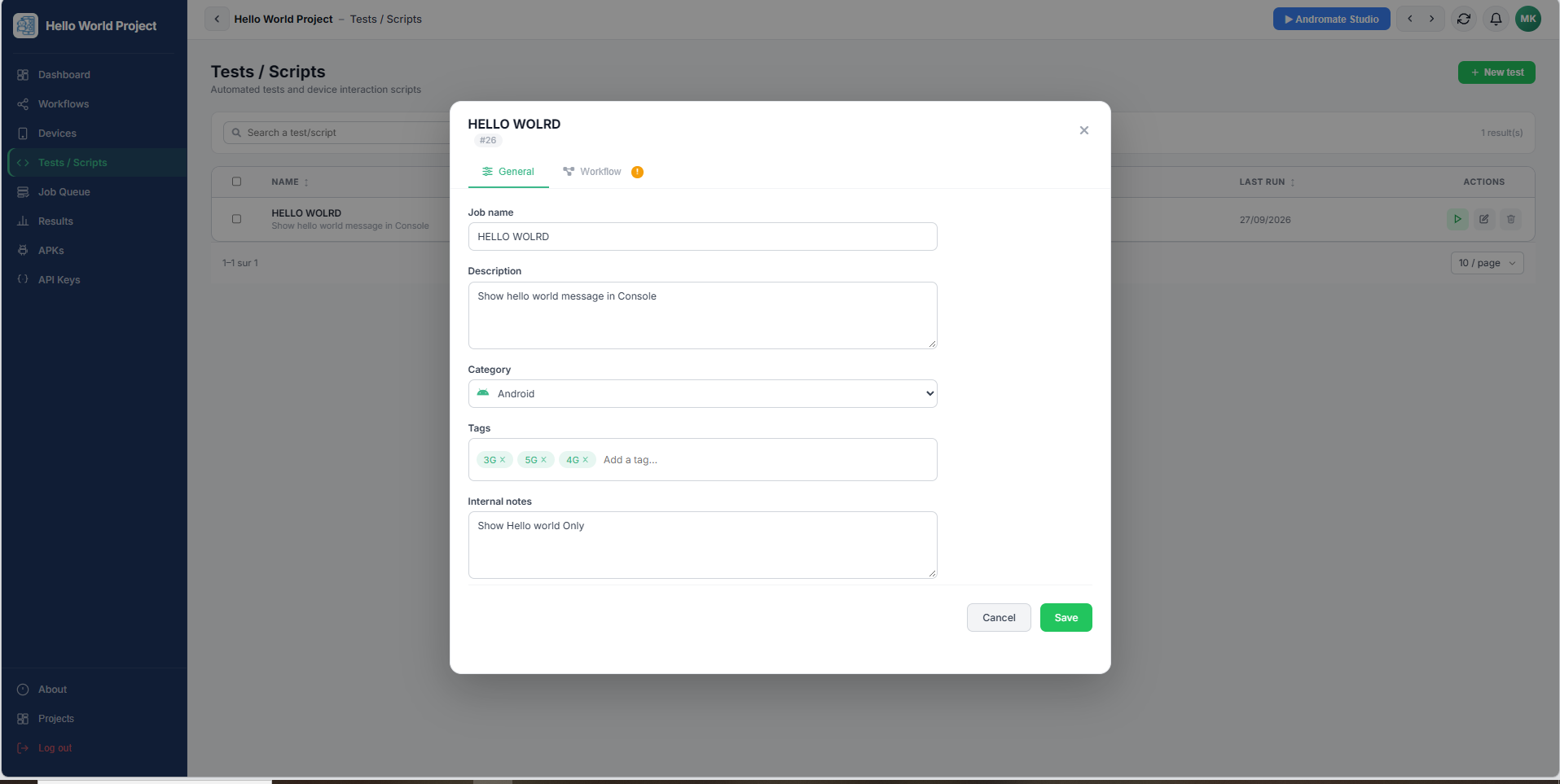
- Click + New test. A modal opens on the General tab.
-
Fill in the job:
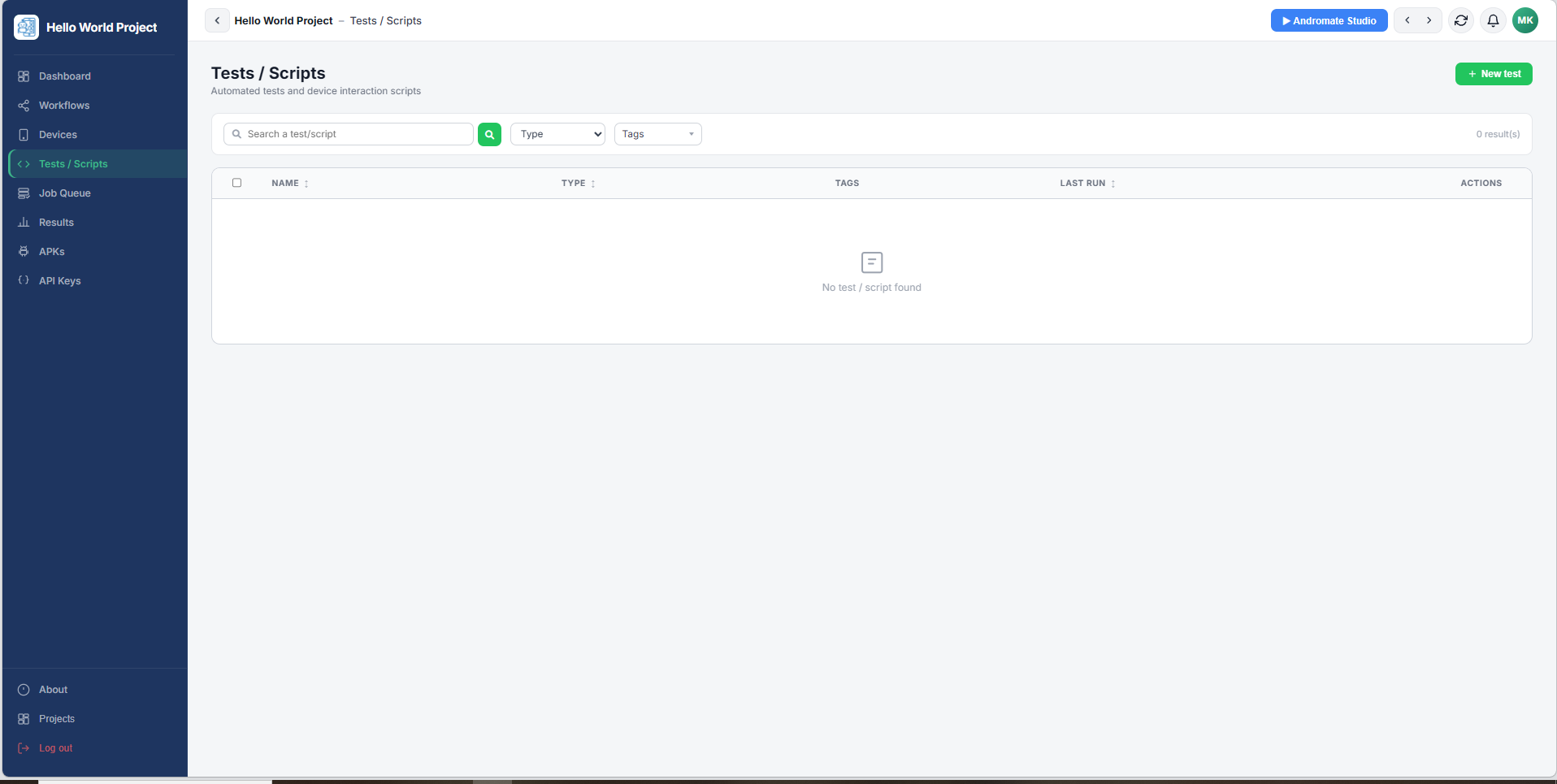
Field Required Description Job name Yes A short, recognisable name Description No What the job does Category Yes QoS, IoT, Android, Network, QA, Performance, Security, UI, Other Tags No Free labels to filter and search jobs later Notes No Internal notes, not shown to end users Tests / Scripts starts empty - this is where your job appears once created.
-
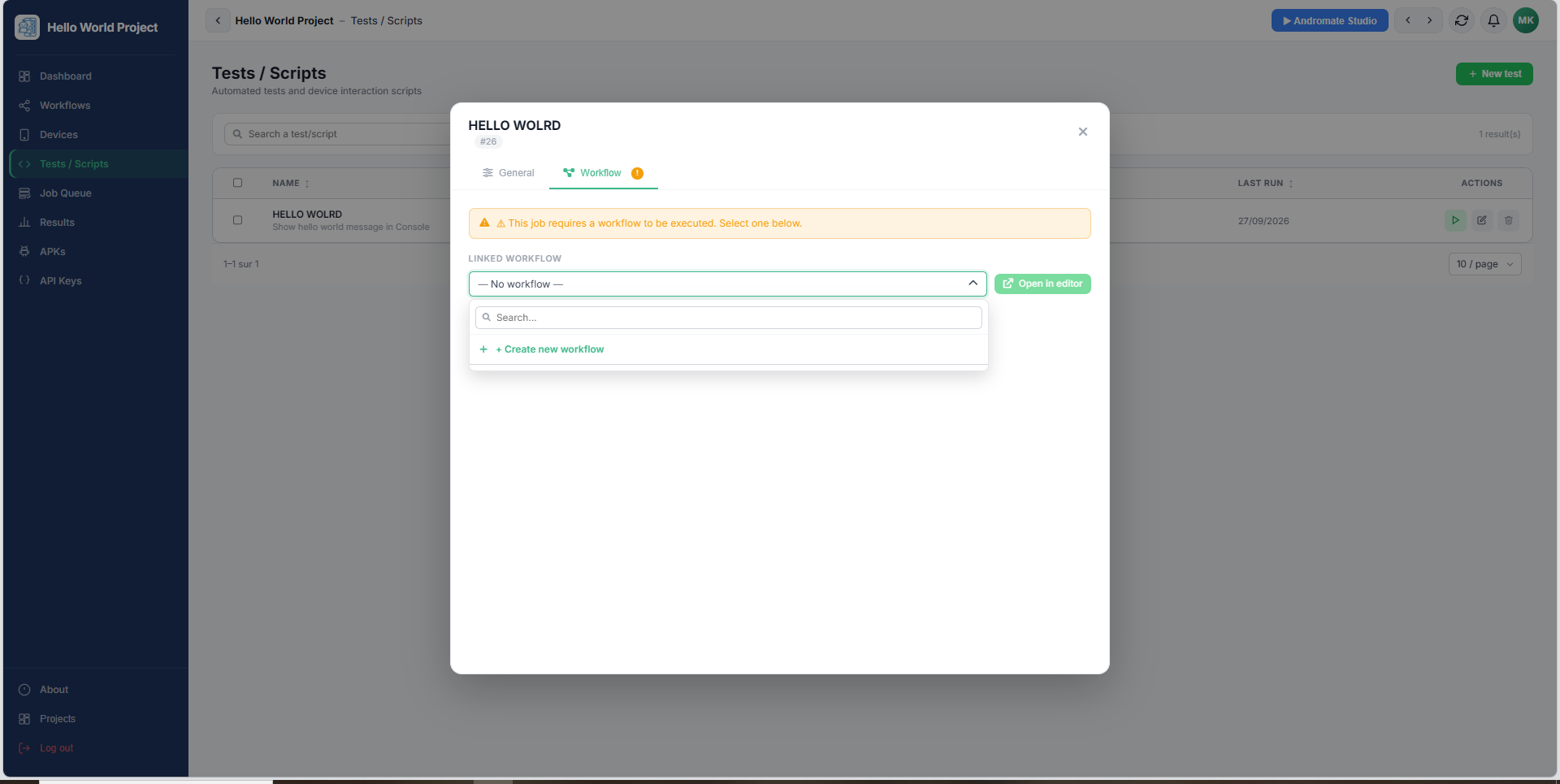
Switch to the Workflow tab. A job cannot run without a workflow attached, so you have two options:
- Attach an existing workflow - search it in the dropdown and select it.
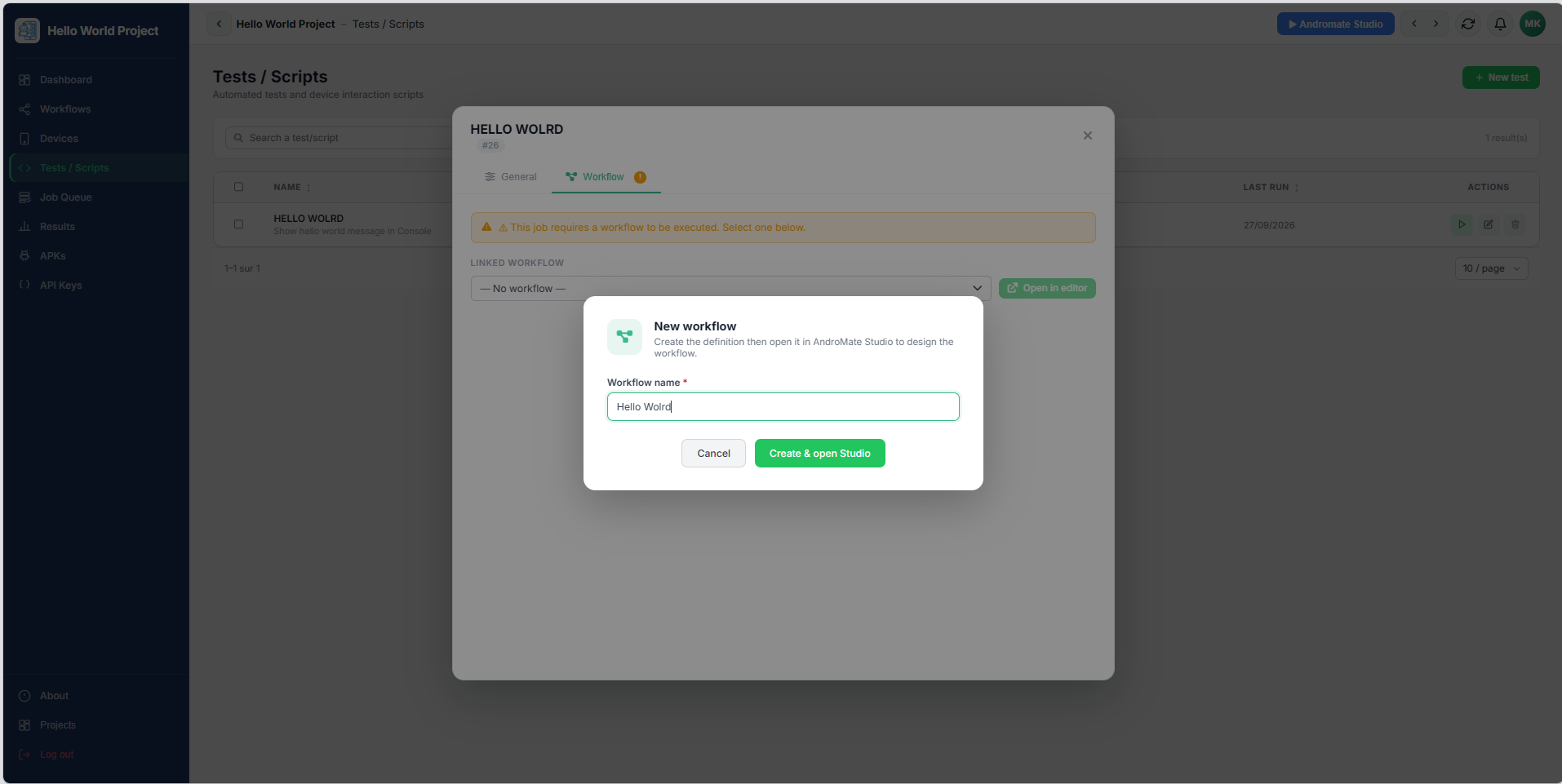
- Create a new workflow - click + Create new workflow at the top of the list, name it, and confirm. AndroMate creates it, attaches it to the job, and opens Andromate Studio in a new tab so you can build it.
Note
A job saved without a workflow shows a warning badge and cannot be launched. Come back to this tab once the workflow exists.
-
Click Save (or Create, for a brand new job).
Build the workflow
If you created a new workflow, Andromate Studio opens on it in a new tab. A workflow always needs at least a Start task and an End task, connected. For a first try, add a single Text Report task in between so the execution produces something visible - set its Text Type to Info Text and its Text to "Hello World".
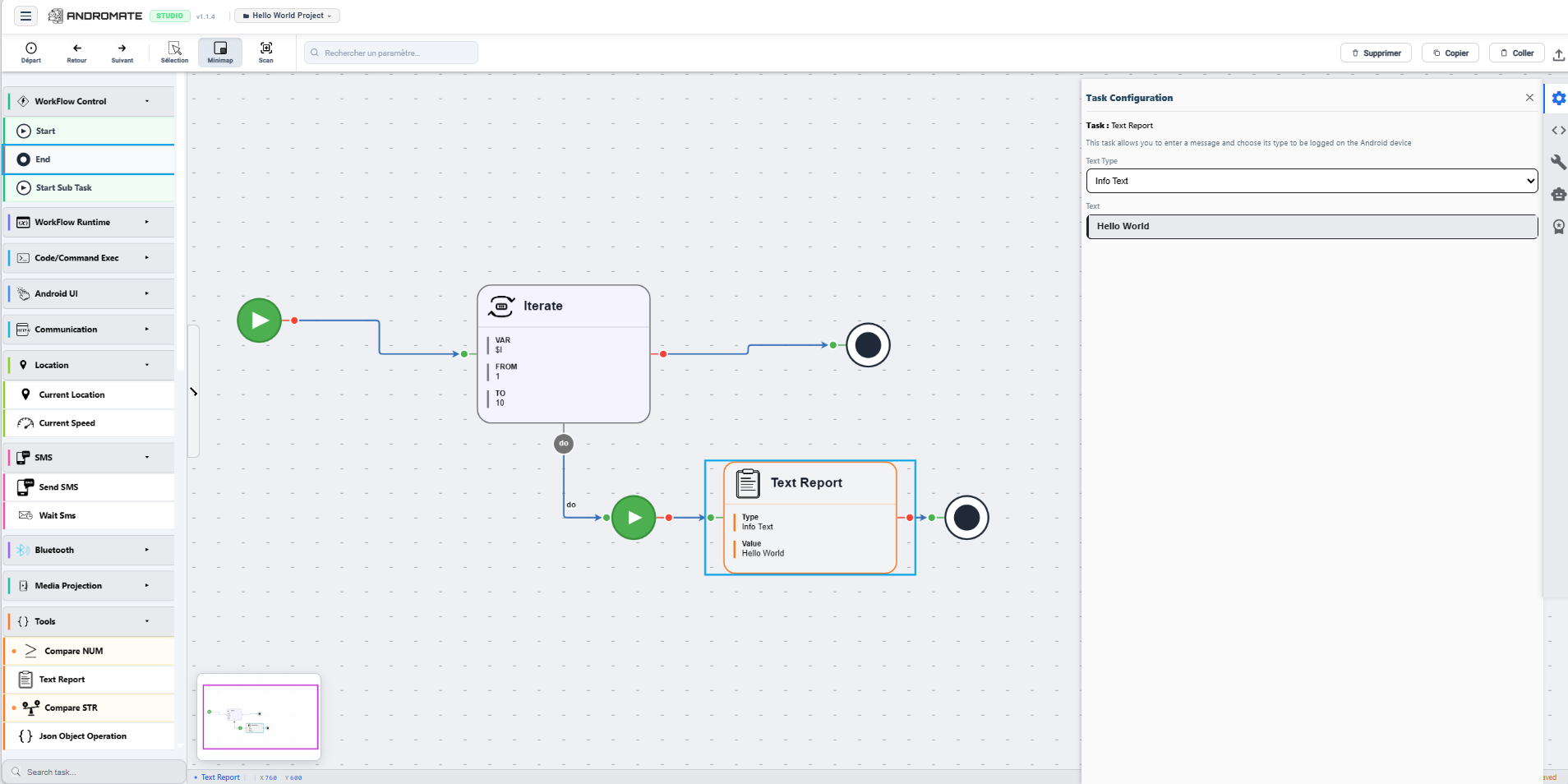
Studio has no visible Save button in the toolbar: open the menu (hamburger icon, top left) and click Sauvegarder.
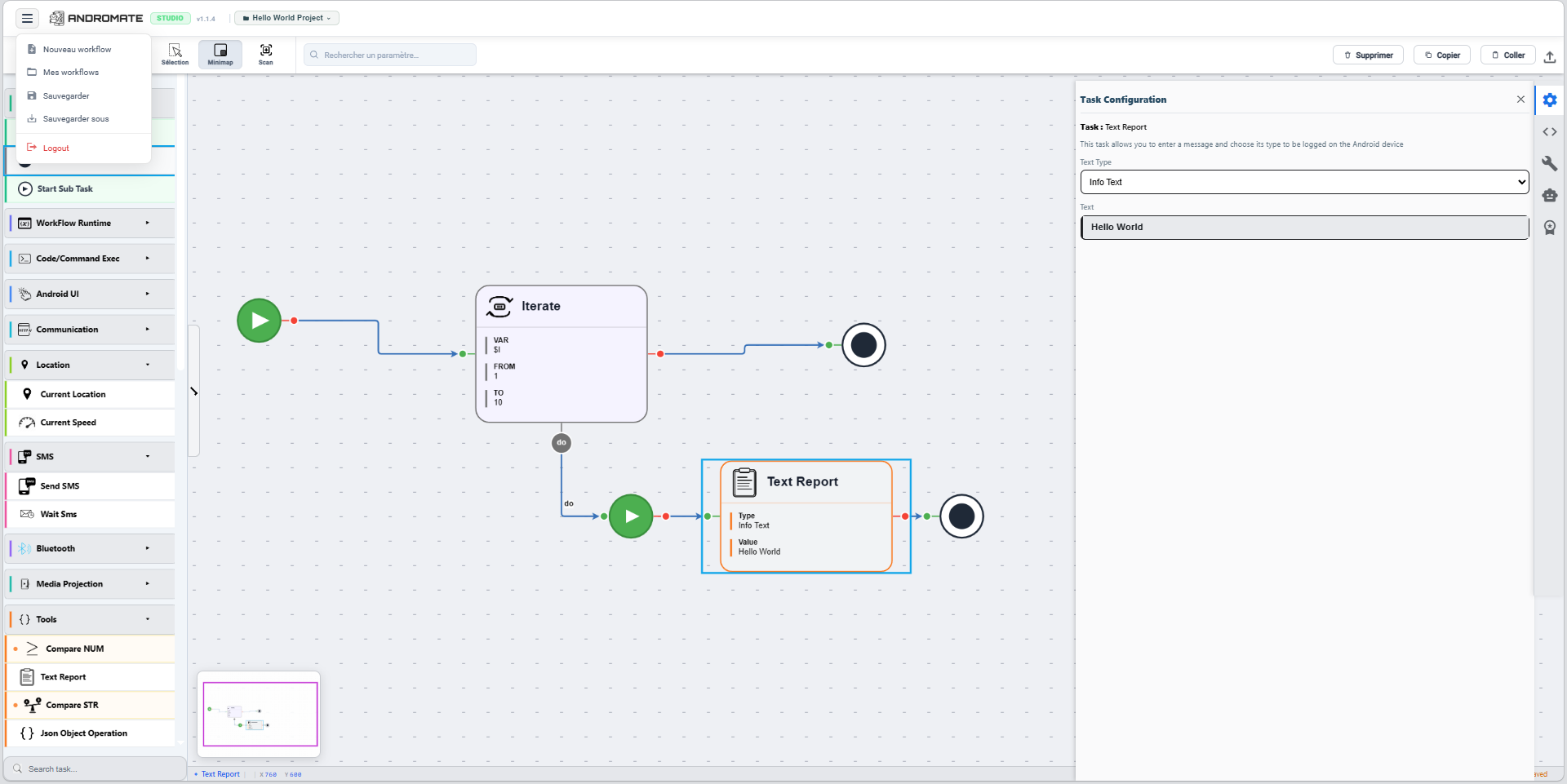
See Create a Workflow for the full picture once you are past this first try.
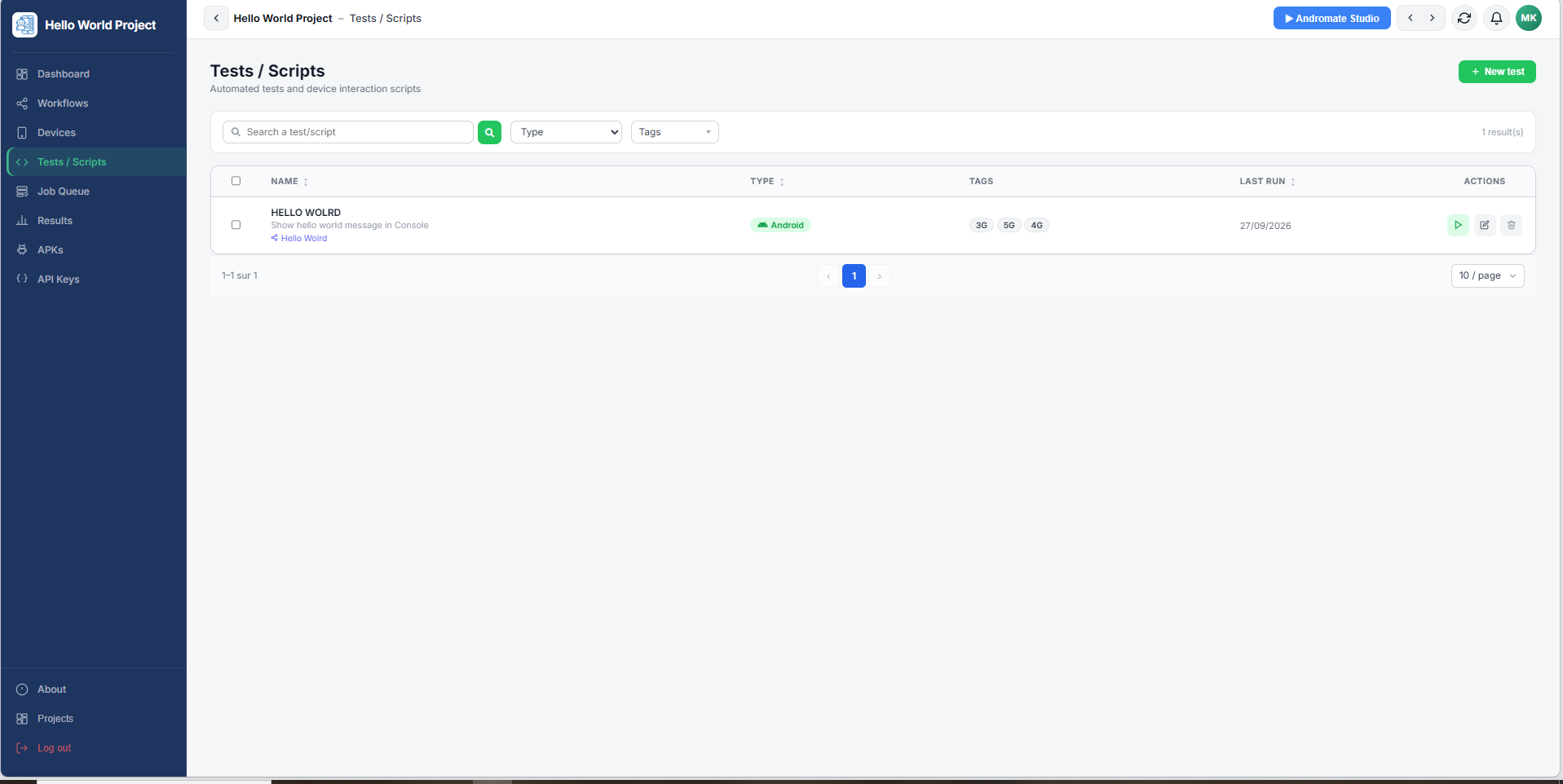
Back on Tests / Scripts, your job now shows its linked workflow under its name.
Run the job
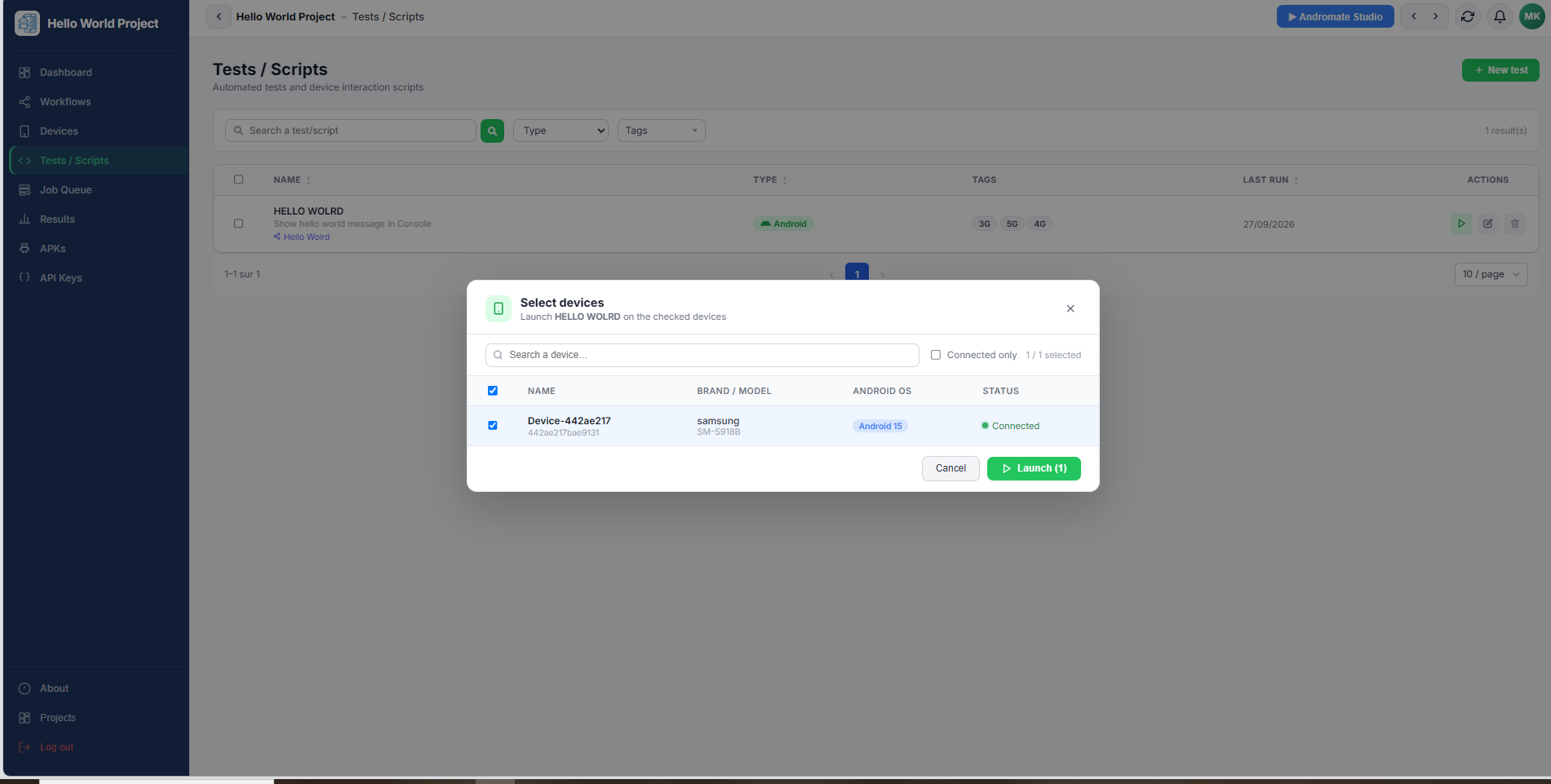
- Back on Tests / Scripts, find your job in the list and click its run icon.
- In the device picker, select one or more connected devices, then confirm.
-
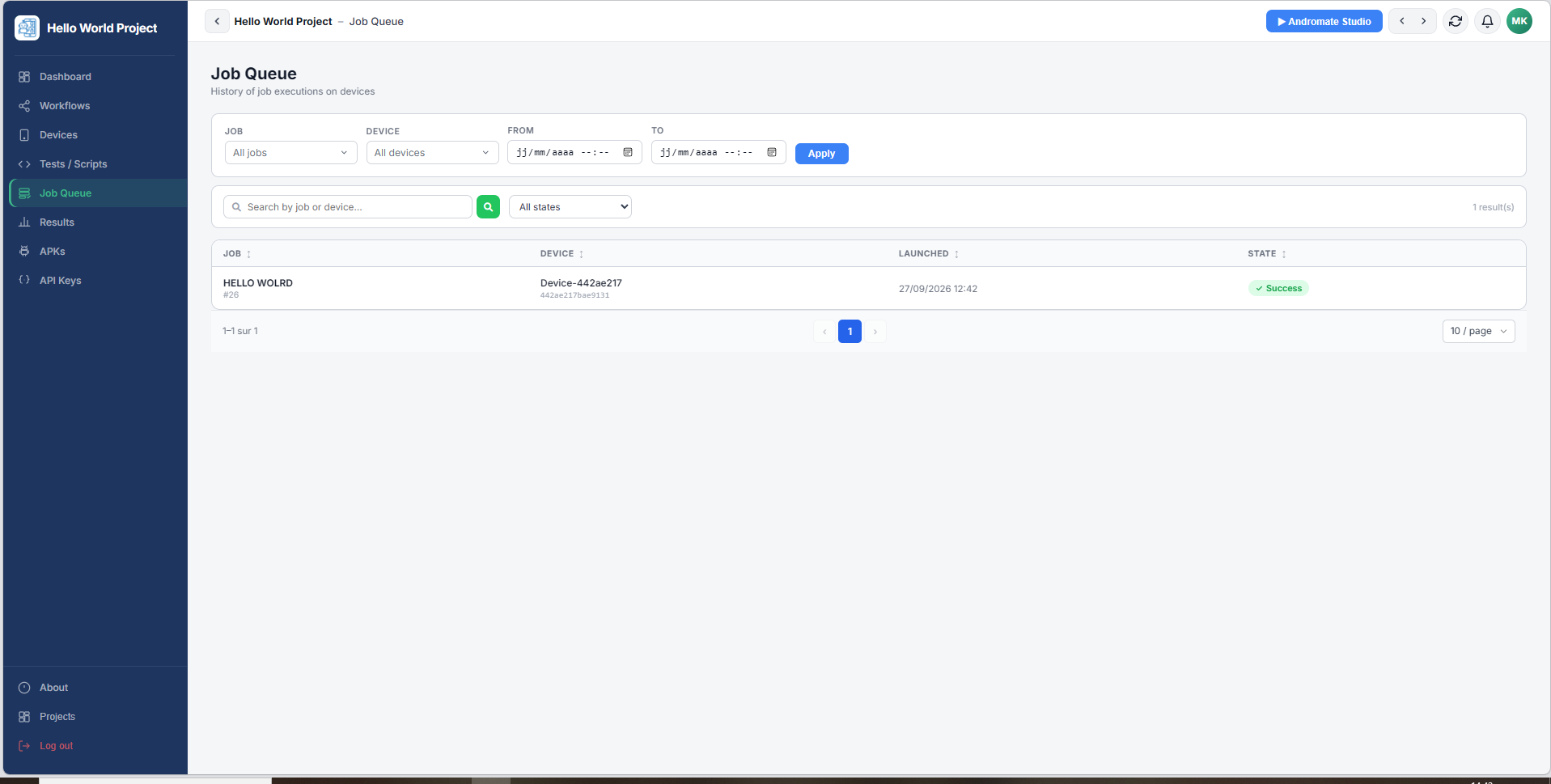
Open Job Queue to follow the execution: it moves through Pending, Running, and finally Success or Failure.
-
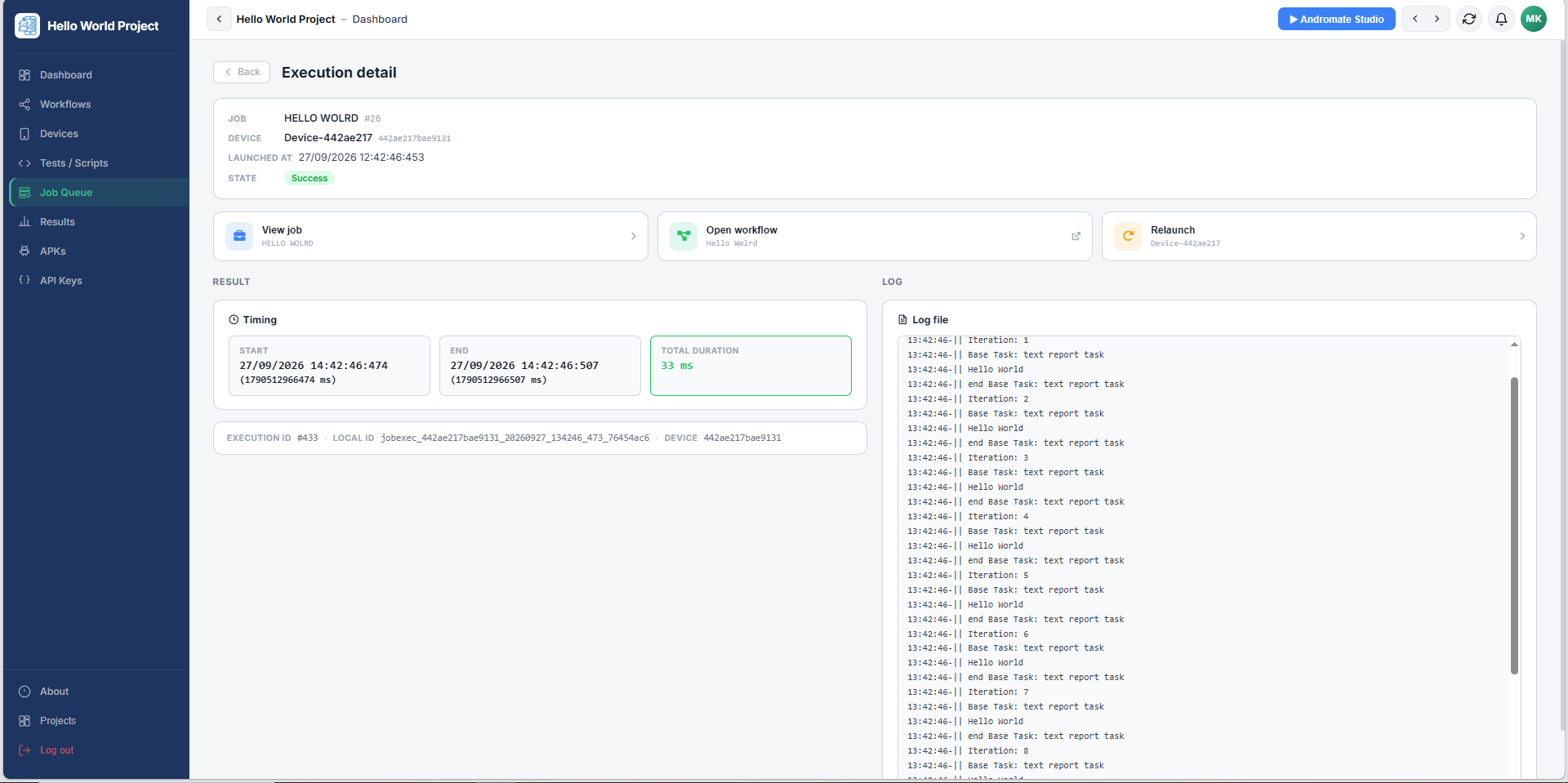
Click the execution to open its detail page. You will see its state, the device it ran on, and once it finishes: the timing, the log, and any KPIs or exceptions raised - each shown as a readable card with the failing task, so you don't have to read raw JSON.
What's next
- Create a Workflow - the full reference, beyond this first try
- Run a Workflow
- Tasks overview - everything you can put inside a workflow
- FAQ