Web Portal - Overview
The web portal is where you manage projects, devices and jobs, and where you review execution results. Everything you see works inside one project at a time - pick or switch projects from Your Projects.
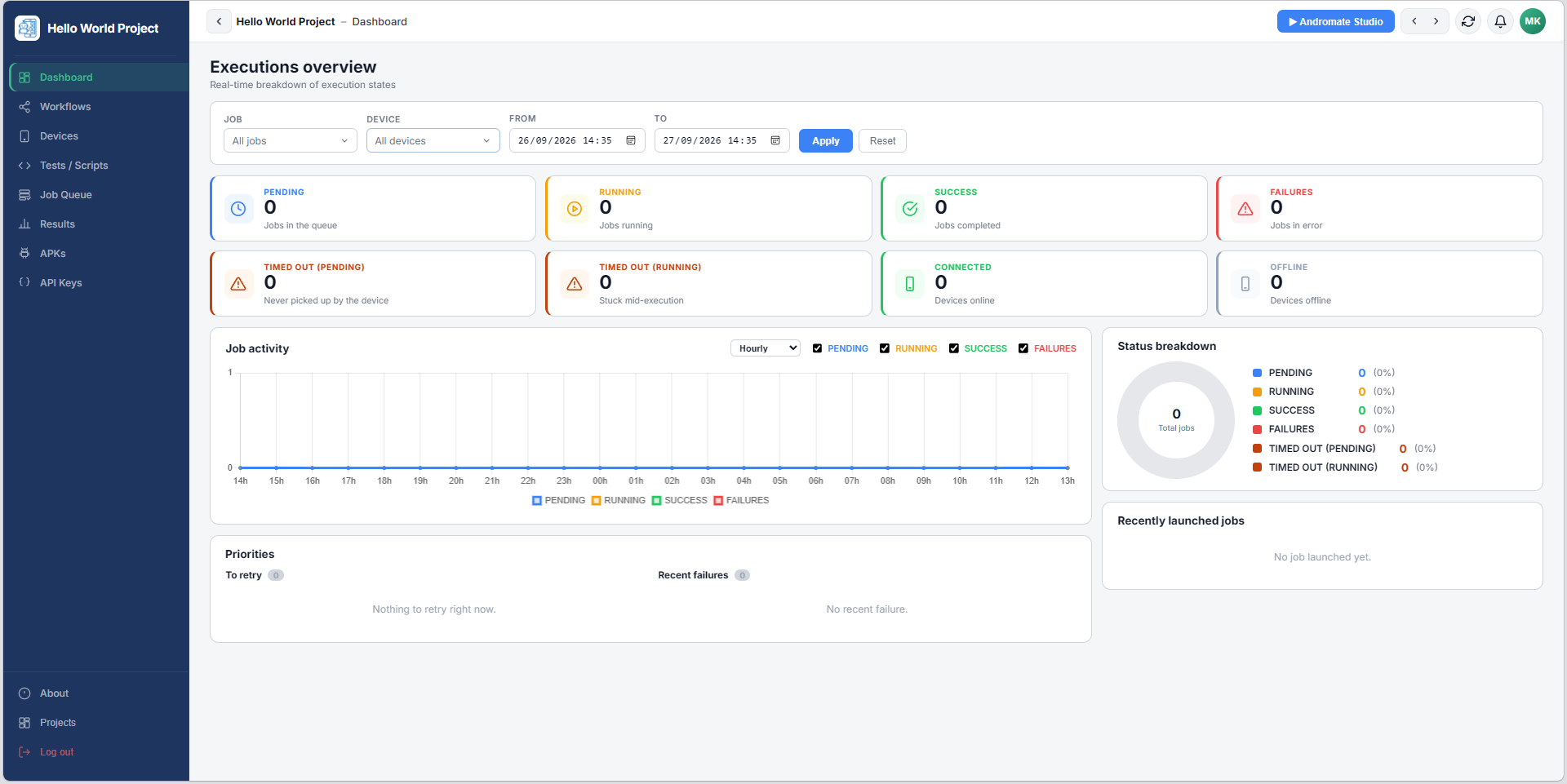
The screen has two parts:
- Top bar - the current project's name, a shortcut to open Andromate Studio, previous/next navigation, a refresh button, notifications, and your account menu.
- Left sidebar - every section of the portal, listed below.
Top bar
| Element | Does |
|---|---|
| back arrow | Returns to Your Projects |
| Project name | The project you are currently working in |
| Andromate Studio | Opens Studio in a new tab, to create or edit a workflow |
| Previous / next arrows | Step through recently viewed pages |
| Refresh | Reloads the current page's data |
| notifications | Shows recent alerts (e.g. failed executions) |
| Account avatar | Account menu and sign-out |
Left sidebar
The sidebar is where you spend most of your time:
- Dashboard - real-time overview of executions and devices
- Workflows - this project's workflows
- Devices - registered devices and their connection status
- Tests / Scripts - this project's jobs
- Job Queue - the live queue of launched executions
- Results - the full execution history
- APKs - downloading the AndroMate agent
- API Keys - programmatic API access
At the bottom: About (version and legal information), Projects (back to the project switcher), Log out.
What's next
- Launch Your First Job - creating a project, a job, and running it
- Device Registration - inviting and registering a device