Toolbar & Menu
Menu
Click the hamburger icon in the top-left corner to open the menu:
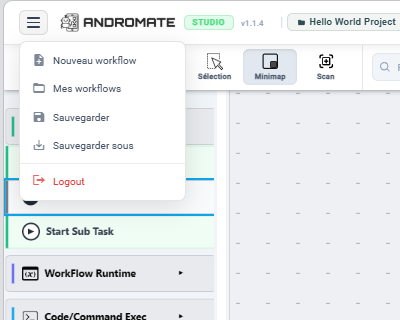
| Item | Does |
|---|---|
| Nouveau workflow | Creates a new, empty workflow |
| Mes workflows | Lists your other workflows, to switch to one of them |
| Sauvegarder | Saves the current workflow. Studio has no visible Save button in the toolbar - this is the only way to save |
| Sauvegarder sous | Saves the current workflow as a copy, under a new name |
| Logout | Signs you out |
Toolbar

1 - Menu
The hamburger icon described above.
2 - View & history controls
| Button | Does |
|---|---|
| Départ | Jumps the view to the workflow's Start task |
| Retour | Undo - steps back through your last change |
| Suivant | Redo - re-applies a change you just undid |
| Sélection | Toggles between rubber-band selection mode and pan (drag-to-scroll) mode |
| Minimap | Shows or hides the minimap, useful to navigate a large workflow |
| Scan | Refreshes the on-canvas summary text of the currently selected task, re-reading its configured values |
Tip
Retour and Suivant are undo/redo for the canvas - they don't undo a save. If you want to discard changes entirely, close the tab without saving.
3 - Search
Filters and highlights tasks on the canvas by name - handy once a workflow has many tasks.
4 - Edit actions
Delete, copy and paste the currently selected task(s), plus export options for the diagram.
What's next
- Task Palette - every task category available to drag onto the canvas
- Create a Workflow - building a workflow end to end, including variables