Mobile App - Home screen
Once the phone is registered, the AndroMate app opens on its Home screen. It shows whether the phone is connected to the platform, how the phone is doing, and the results of the jobs it ran.
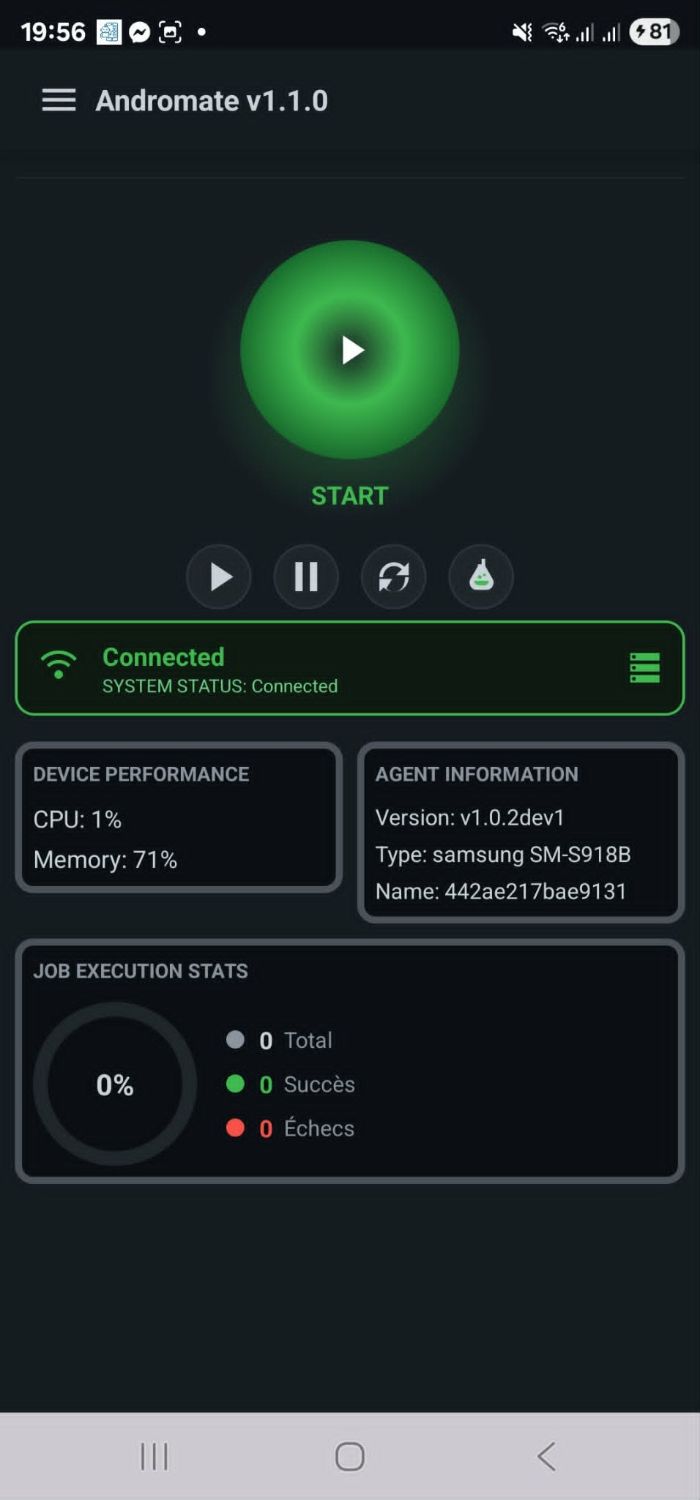
From top to bottom:
| Element | What it shows or does |
|---|---|
| Menu icon and app name | The menu icon (top left) opens the menu. The title shows the app name and version. |
| Round indicator | Reflects the connection to the platform only: green START when connected, red STOP when disconnected. It is an indicator, not a command. |
| Play button | Connects the phone to the platform |
| Pause button | Disconnects the phone from the platform |
| Refresh button | Reconnects: drops the connection and opens it again. Use it when the status stays on Disconnected. |
| Flask button | Test button, reserved for a future version. It has no effect for now. |
| Status card | SYSTEM STATUS is one of Disconnected, Connecting or Connected |
| Device performance | Live CPU and Memory usage of the phone, in percent |
| Agent information | Version of the app, Type (manufacturer and model) and Name (the device ID, also shown under the device name in the portal's Devices page) |
| Job execution stats | The ring shows the success rate. Total, Succès (success) and Échecs (failures) count the jobs run by this phone for the signed-in account. |
For a job to reach the phone, the status must be Connected. If it stays on Disconnected, press Refresh, check the phone's Internet access, and see the FAQ.
What's next
- Menu and Settings: the side menu, Sync Entries and Settings
- Device Registration: connecting a new phone
- Run a Workflow: what happens when a job reaches the phone