Installation
Install the AndroMate agent on your Android device so it can receive and run your workflows. There are two ways to install it:
| Normal app | Device Owner | |
|---|---|---|
| Best for | Trying AndroMate, a single device | Managed fleets, unattended devices |
| How | Download the APK from the web portal | Run the installer from a PC over USB |
| Phone requirement | Any supported Android phone | Factory-reset phone with no account |
| Extra abilities | - | Silent APK installation, kiosk mode |
Which one should I choose?
Start with the Normal app. Switch to Device Owner when you need the agent to install applications silently or to lock a device into a single app (kiosk mode).
Requirements
Supported phones
Currently, AndroMate supports Samsung phones only. We are adapting the app to other brands, with priority to Xiaomi (HyperOS) and Google Pixel (native Android).
- Android: Android 13 (API 33) or later (tested up to Android 16 (API 36)).
- Processor: ARM (arm64 / armeabi) - x86 emulators are not supported.
- Internet access on the phone, and an AndroMate account with a project on the web portal.
- For the Device Owner method only: a Windows PC, a USB cable, and a phone with no Google or other account configured.
Option 1 - Normal app
1. Download the APK
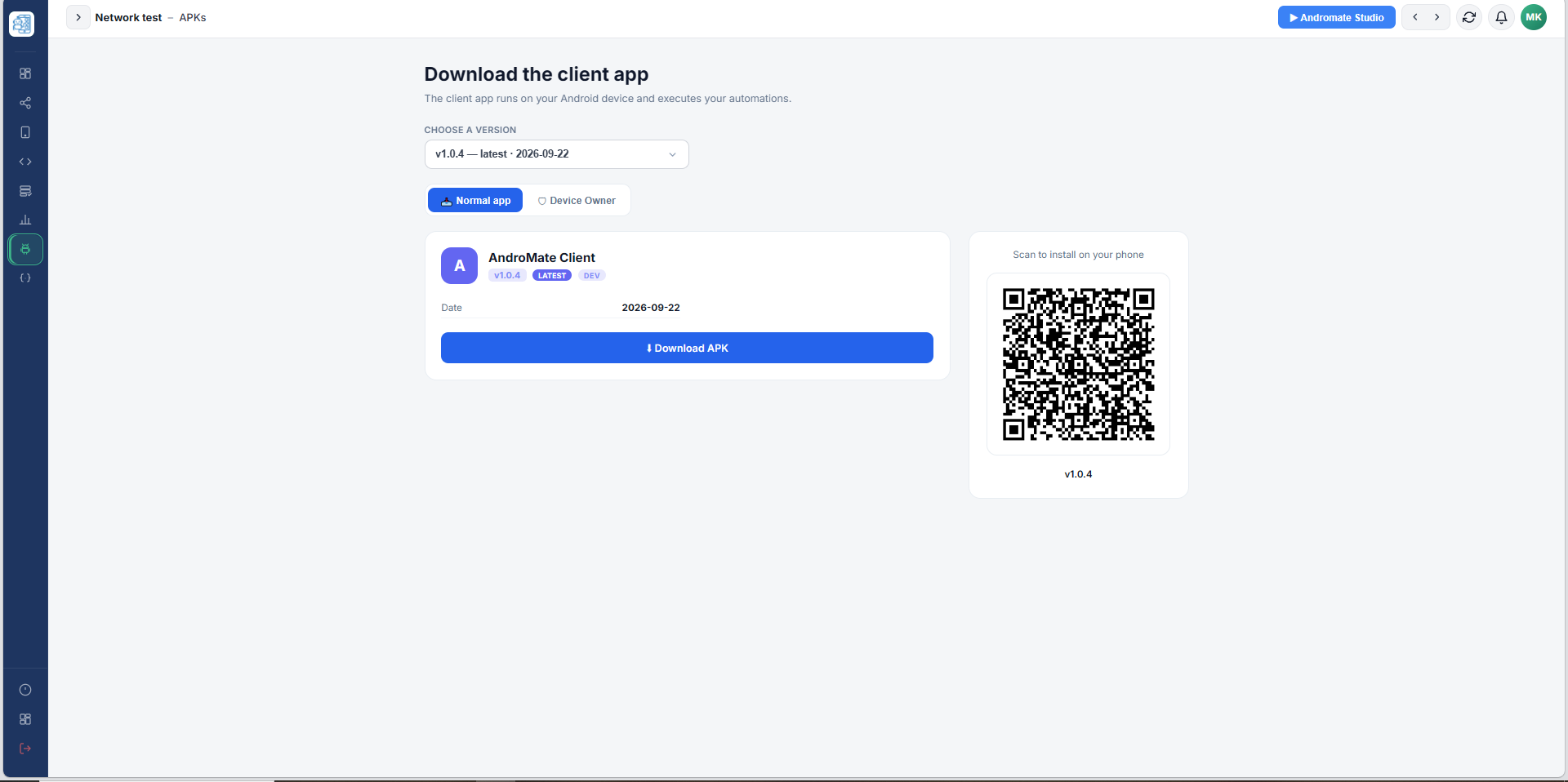
- Open the web portal and go to APKs in the left menu.
- In Choose a version, keep the latest version (marked LATEST) unless you were asked to use another one.
- Make sure the Normal app tab is selected.
- Either click Download APK on the PC and copy the file to the phone, or scan the QR code ("Scan to install on your phone") with the phone's camera to download it directly.
2. Allow the installation
Android blocks apps that do not come from the Play Store by default. When you open the downloaded file, Android asks you to allow the source (your browser or file manager):
- Tap Settings on the prompt.
- Enable Allow from this source.
- Go back and tap Install.
Note
If Google Play Protect shows a warning about an unknown app, choose Install anyway. If Play Protect blocks the install entirely instead of just warning - or if the phone shows App not installed - open the Play Store app -> profile icon -> Play Protect -> Settings and turn off Scan apps with Play Protect, then try the install again. Disabling Play Protect is required for the installation to succeed in that case; you can turn it back on afterwards. We are working on getting AndroMate approved on the Play Store, which will remove this warning.
3. First launch
Open AndroMate. On the first launch the app shows a permissions screen and asks you to grant, one by one, what it needs to automate the device. Follow Device Registration, which walks through every screen in order: consent, permissions, and connecting the phone to your project.
Option 2 - Device Owner (USB installation)
Device Owner is the most privileged mode Android offers to a management app. AndroMate installed as Device Owner can install applications silently and pin a device into kiosk mode, and it can only be removed by a factory reset. The installation is done from a Windows PC with adb, a tool that talks to the phone over USB.
Read this first
- The phone must be in a factory-reset state with no account (no Google account, no Samsung account...). Android refuses to set a Device Owner on a phone that already has accounts.
- Device Owner cannot be removed from the app. To go back to a normal phone you must factory-reset it again.
- All data on a phone you reset is erased - back it up first.
What you need
- A Windows PC and a USB cable that carries data (not a charge-only cable).
- A factory-reset phone with the initial setup screens completed without adding any account.
- The installer package from the portal (below).
1. Download the installer
- In the web portal open APKs, choose the version, and select the Device Owner tab.
-
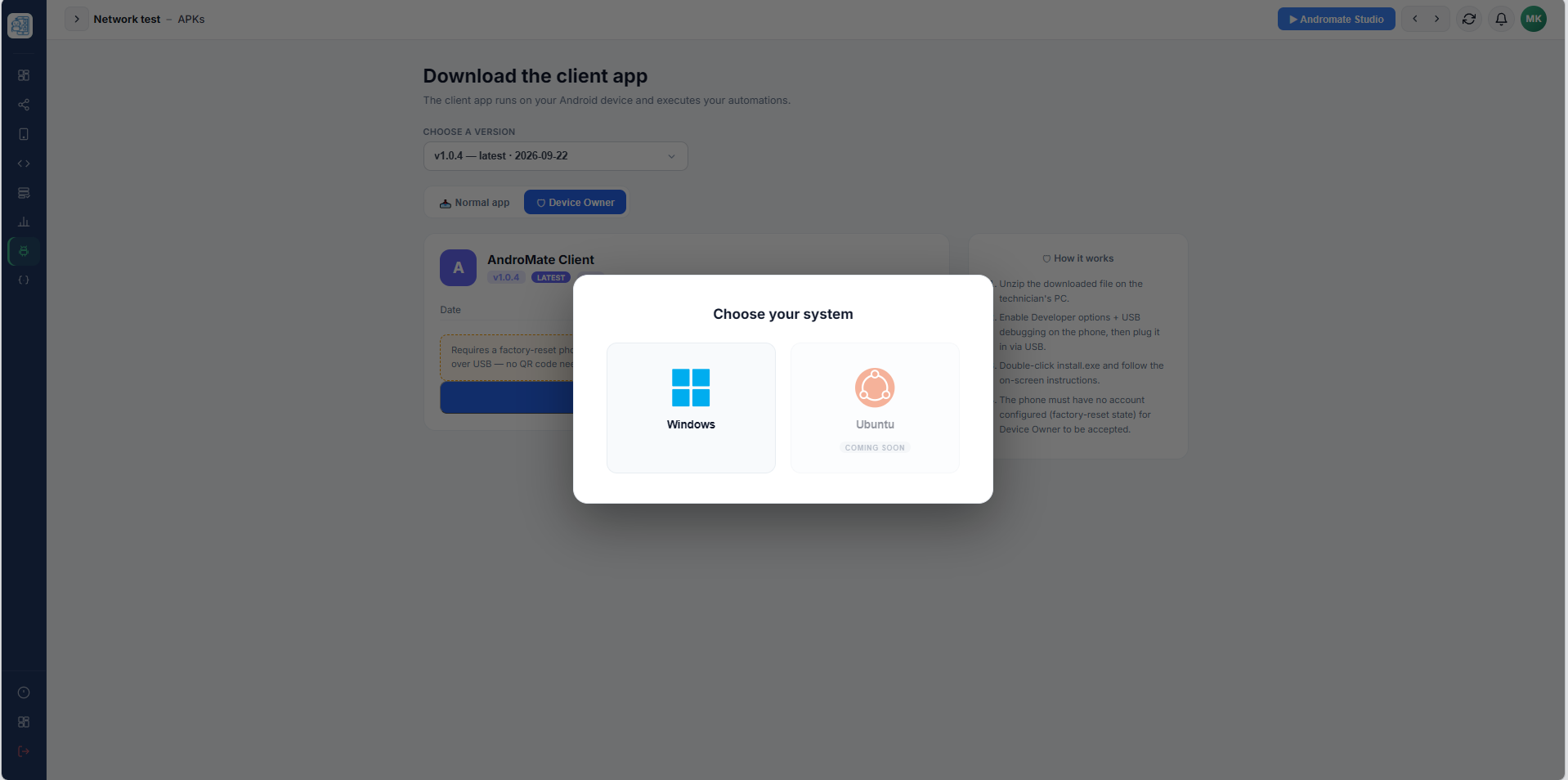
Click Download installer. A Choose your system window opens: select Windows (Ubuntu is marked Coming soon). The portal then prepares a ZIP file named
andromate-device-owner-installer-v<version>.zip.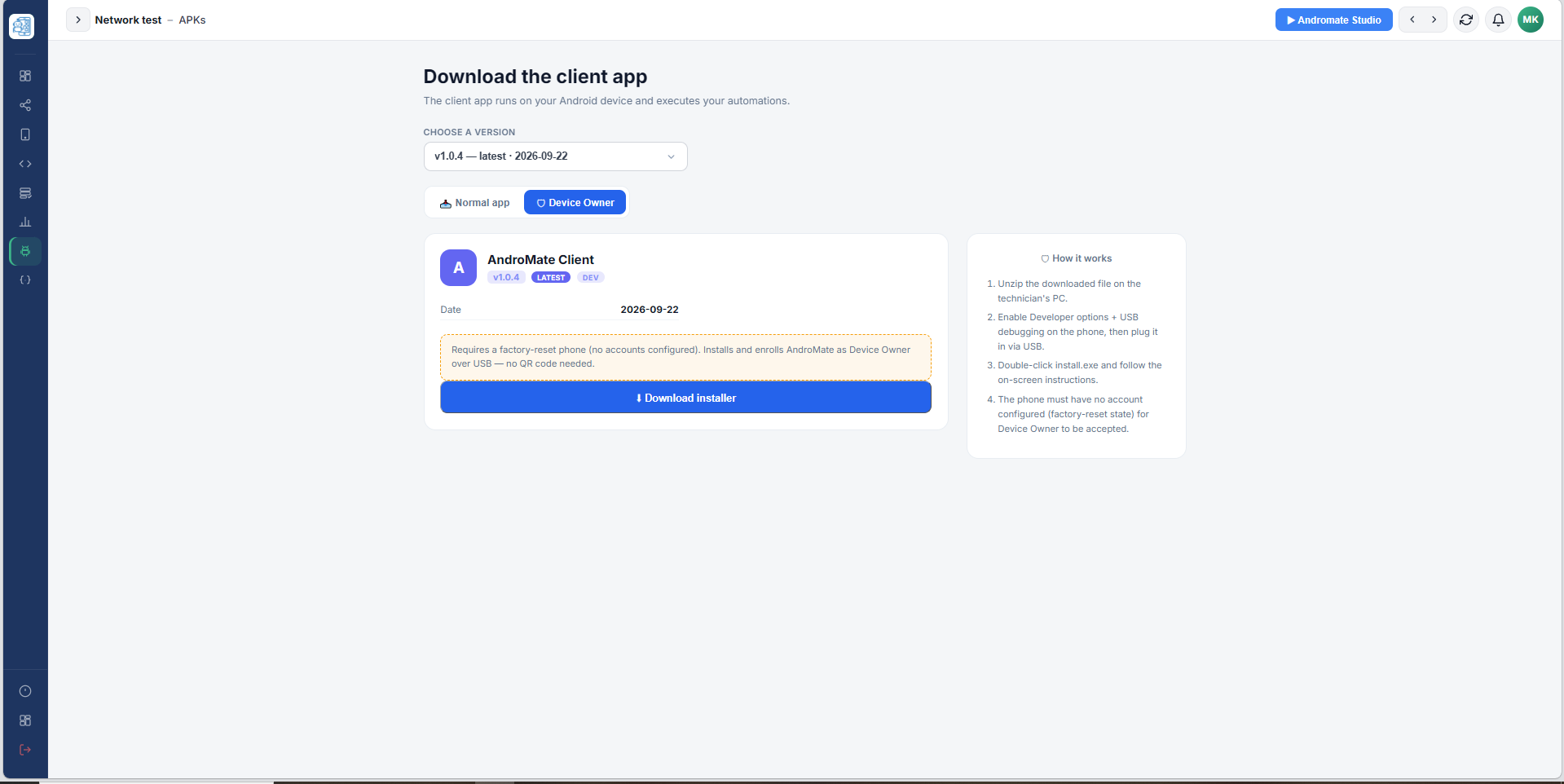
-
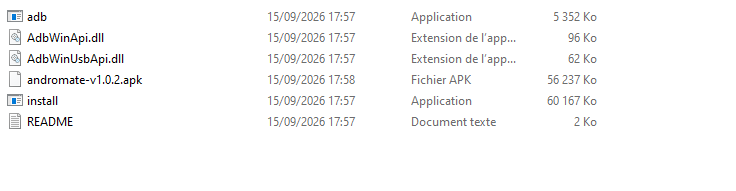
Unzip it on the technician's PC. The folder contains:
File Purpose install.exeRuns the whole installation for you adb.exe,AdbWinApi.dll,AdbWinUsbApi.dllAndroid Debug Bridge, used by install.exeandromate-v<version>.apkThe AndroMate agent for the version you chose README.txtShort reminder of the steps
2. Prepare the phone
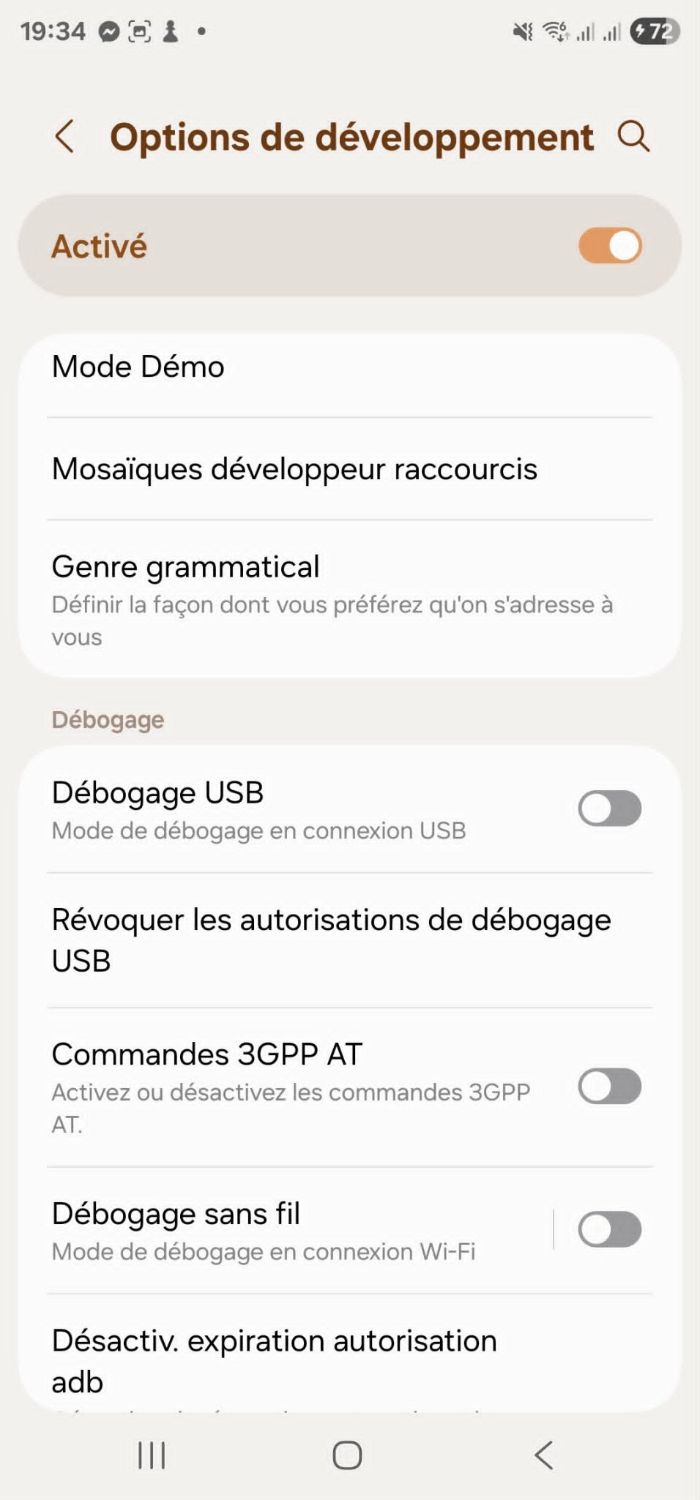
- Go to Settings -> About phone and tap Build number seven times until Android says you are a developer.
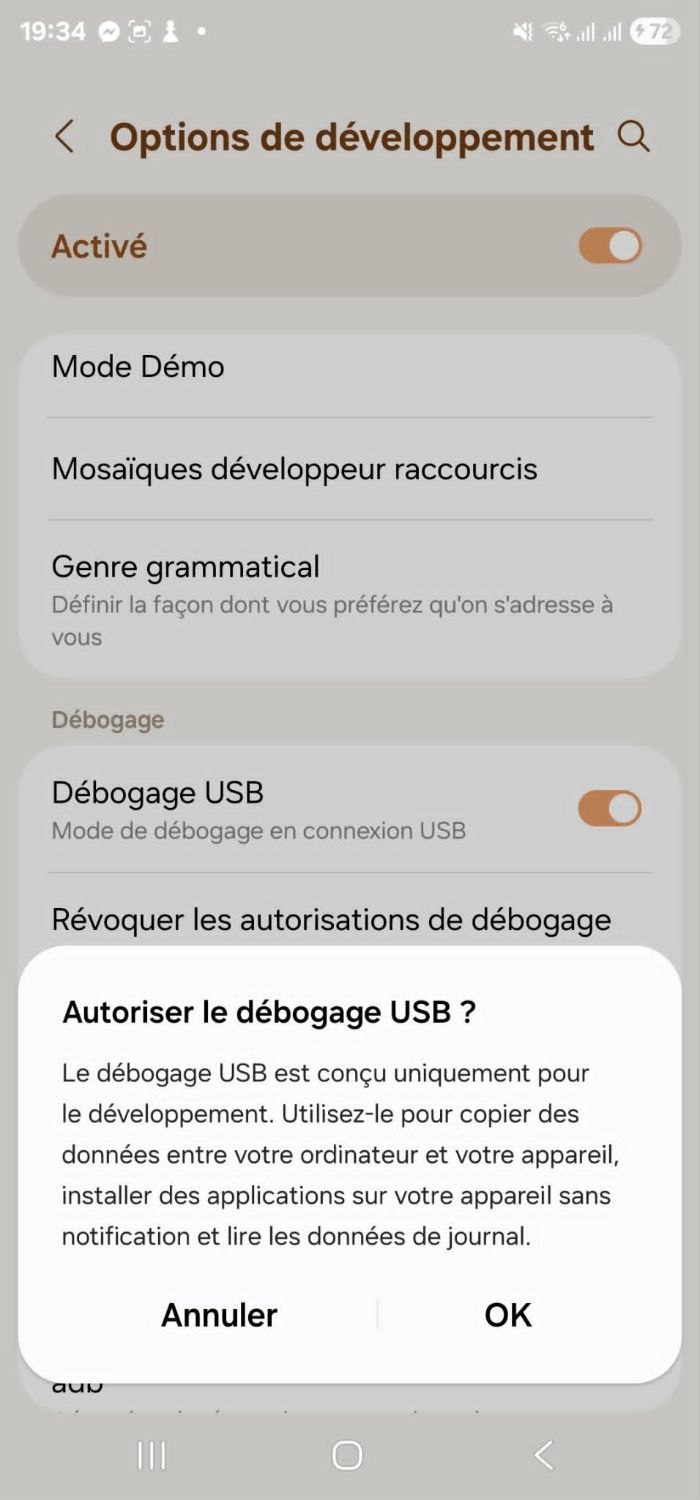
- Go to Settings -> Developer options and turn on USB debugging.
- Plug the phone into the PC. A prompt Allow USB debugging? appears on the phone: tap OK (on some phones, tick Always allow from this computer first).
Tip
On some phones the menu names differ slightly. Search "Build number" in the Settings search bar to find it.
3. Run the installer
- Double-click
install.exe. - If Windows shows "Windows protected your PC" (SmartScreen), click More info then Run anyway. The installer is not digitally signed, so this warning is expected.
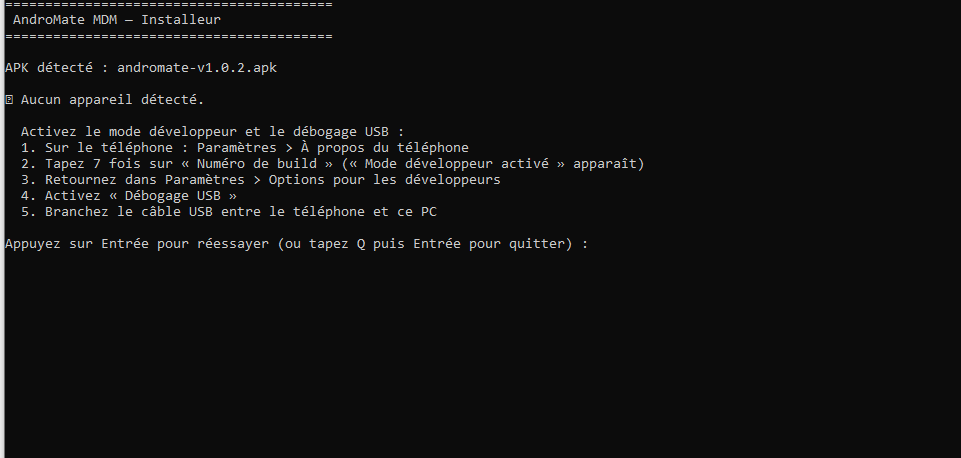
- A console window opens (its messages are in French). It shows the APK it found, then looks for your phone:
- If it prints Aucun appareil détecté, it lists the steps to enable developer mode and USB debugging. Plug the phone in, then press Enter to retry (or type Q then Enter to quit).
- Once it prints Téléphone détecté et autorisé, it installs the application and then makes AndroMate the Device Owner of the phone.
- Wait for the success message. The phone can then be unplugged.

4. Check the result
Open AndroMate on the phone and continue with Device Registration. To confirm from the PC that AndroMate is the Device Owner, run in a terminal opened in the installer folder:
The output must list com.kam.andromate as device owner.
Manual installation (if install.exe does not work)
Open a command prompt in the installer folder and run these commands in order:
A device must appear with the status device (not unauthorized or offline).
Each command must end with Success. Replace <version> with the version in the APK file name.
Troubleshooting
| Message or symptom | Cause | What to do |
|---|---|---|
Not allowed to set the device owner because there are already some accounts on the device |
An account exists on the phone | Factory-reset the phone and complete the setup without adding an account, then run the installer again |
adb devices shows nothing |
Charge-only cable, missing driver, or USB debugging off | Try another cable and port, make sure USB debugging is on, set the USB mode to File transfer |
Status unauthorized |
You did not accept the prompt on the phone | Unplug and replug the cable, then accept Allow USB debugging? |
Status offline |
Stale connection | Run adb kill-server, then adb devices again |
SmartScreen blocks install.exe |
The file is not code-signed | More info -> Run anyway |
INSTALL_FAILED_... during adb install |
Older or conflicting version installed | Uninstall the existing AndroMate app, then run the installer again |
What's next
- Register the device (first launch)
- Launch your first job
- Device Owner tasks: Install Silent APK