Create a Workflow
A workflow is built graphically in Andromate Studio: drag tasks from the Task Palette onto the canvas, connect them, and configure each one in the Task Configuration panel. This page covers the rules that make a workflow valid, and - in more depth - branching with condition tasks and working with variables entirely from the graphical interface.
The rules of a workflow
- Exactly one Start task, and at least one End task.
- Every task's output connects to exactly one next task - drag from its output port to the next task's input port.
- A condition task (Compare Number, Compare String...) is the exception: it has two outgoing links,
trueandfalse- connect both. - A connector task (Iterate, ForEach Element...) wraps its own nested sub-workflow - open it to add tasks inside the loop, then continue the outer graph from the connector's single output, same as a normal task. See Tasks Overview > Connector Tasks.
- Every path has to reach an End eventually - a dangling link (no task connected) is invalid.
Branching with a condition task
A condition task (Compare Number, Compare String...) evaluates its inputs and follows exactly one of its two outgoing links: the green T port (true) or the red F port (false).
This example reads the battery level, then branches on whether it's low: Get Battery Level writes into $BATTERY_LEVEL -> Compare NUM checks $BATTERY_LEVEL <= $BATTERY_LOW_LEVEL -> T goes to a "Very Low Battery level" report, F goes to a "High Battery level" report, and both merge back into End.
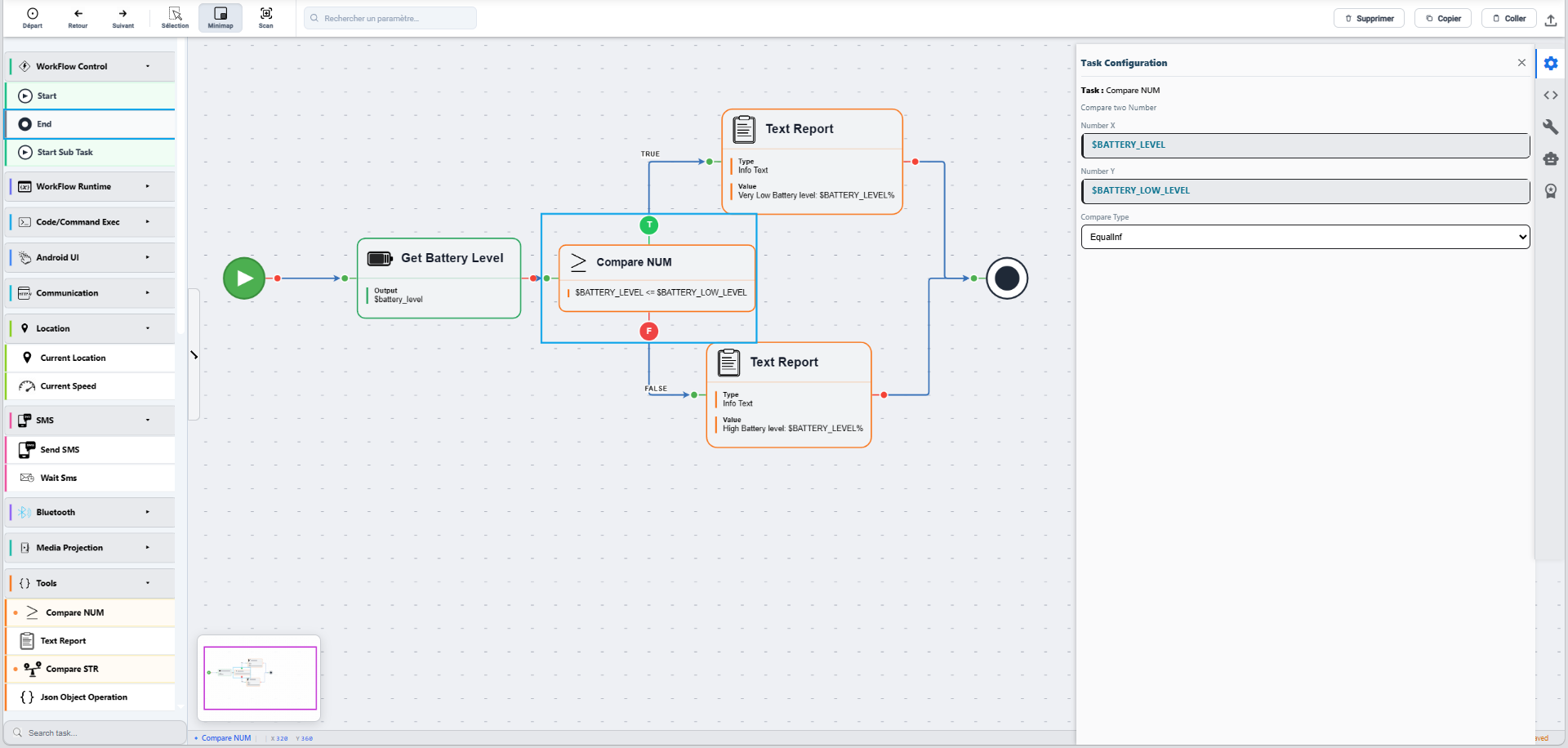
Each branch is just a normal task, configured like any other:
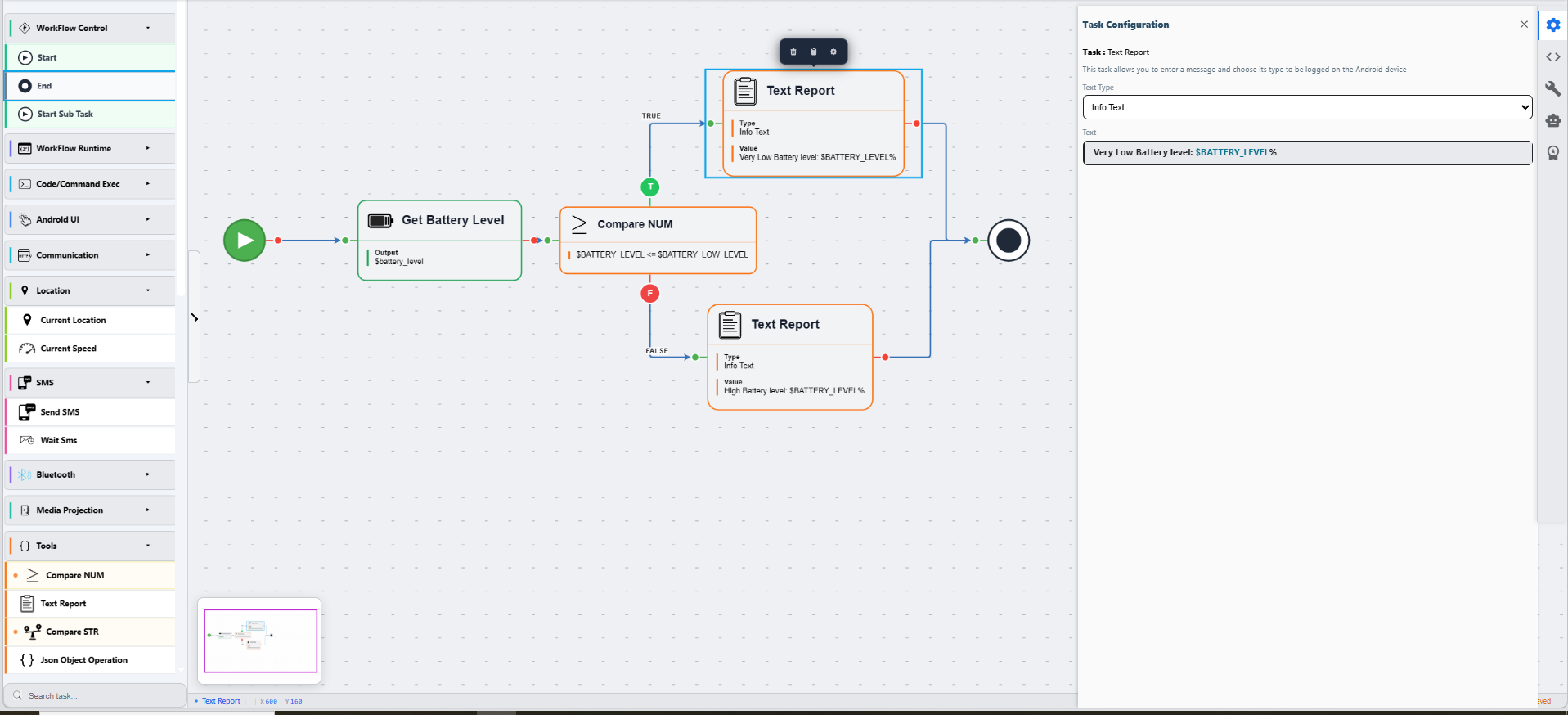
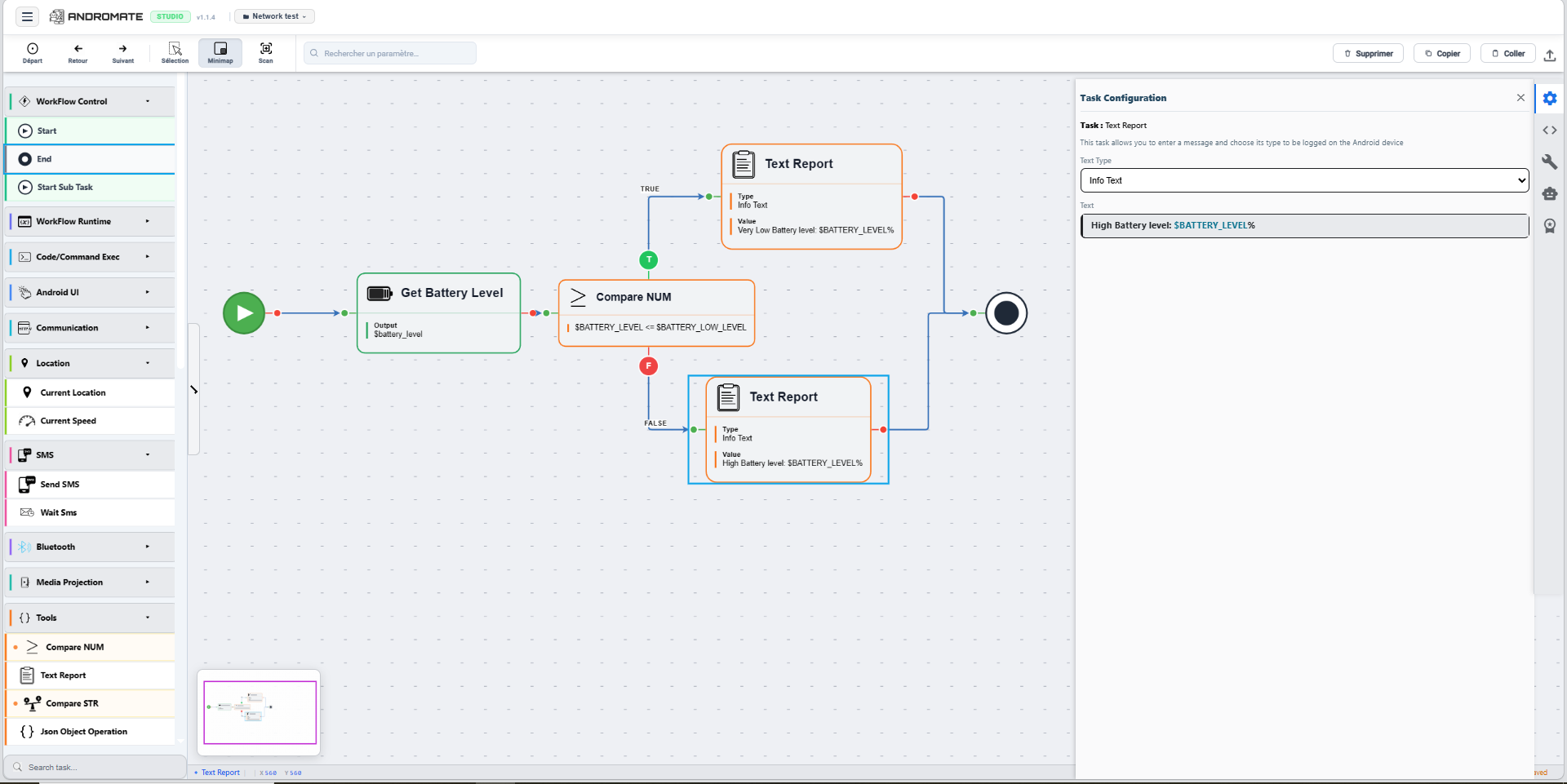
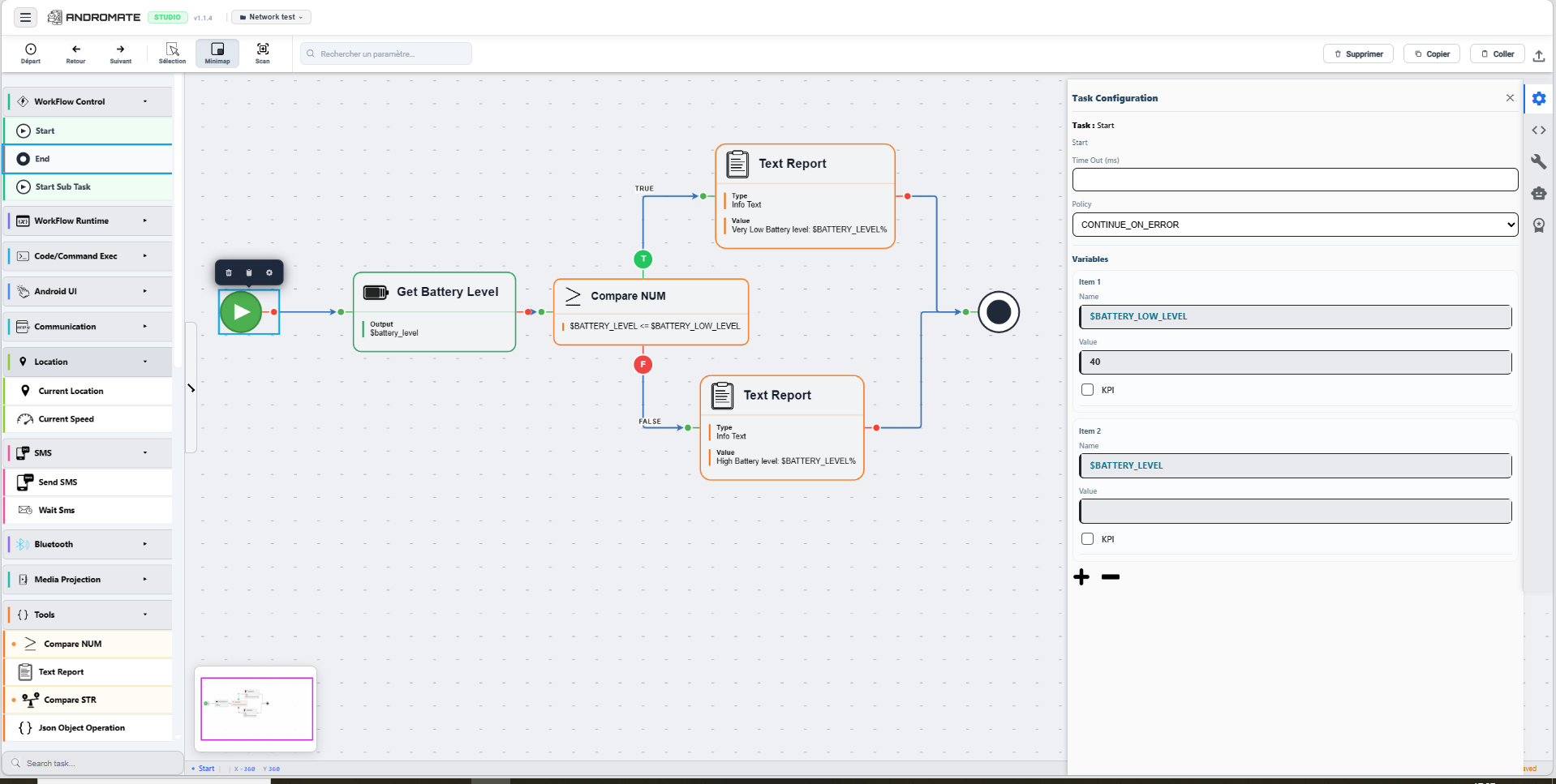
The Start task declares the threshold this condition compares against:
Running it - the battery reads 22, and 22 <= 40 is true - produces this execution log:
16:42:43-| execute task task
16:42:43-|| Base Task: Reading battery level...
16:42:43-|| result = 22
16:42:43-|| end Base Task: Battery level read
16:42:43-|| Base Task: Compare EQUAL_INF (numX= $BATTERY_LEVEL; numY= $BATTERY_LOW_LEVEL)
16:42:43-|| end Base Task: Compare EQUAL_INF
16:42:43-|| Base Task: text report task
16:42:43-|| Very Low Battery level: 22%
16:42:43-|| end Base Task: text report task
16:42:43-| end task task
Only the T branch ran - the log has no "High Battery level" line at all. Had the battery read above 40, the F branch would have run instead, and the report would read "High Battery level".
Variables, in the graphical interface
Variables in Workflows documents variables at the JSON level. Here is the same model, from the screens you actually click.
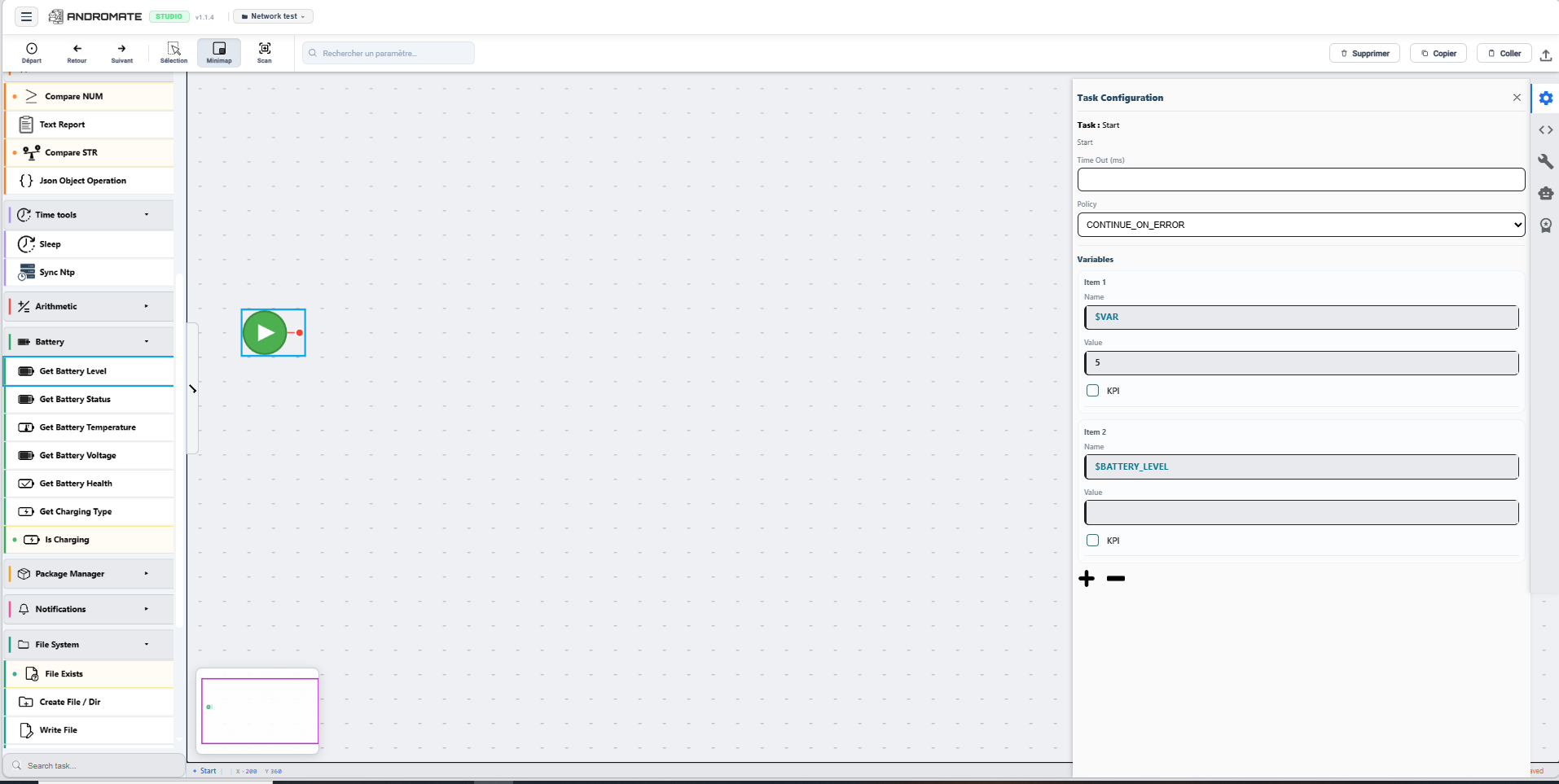
1. Declare a variable on the Start task
Select the Start task to open its Task Configuration panel. Its Variables list is exactly variableName / variableValue / is_kpi from the JSON, as form fields: a Name (the $ prefix is mandatory), a Value (its default, which can be left empty), and a KPI checkbox to flag it as a reported key metric. Use + / - to add or remove variables.
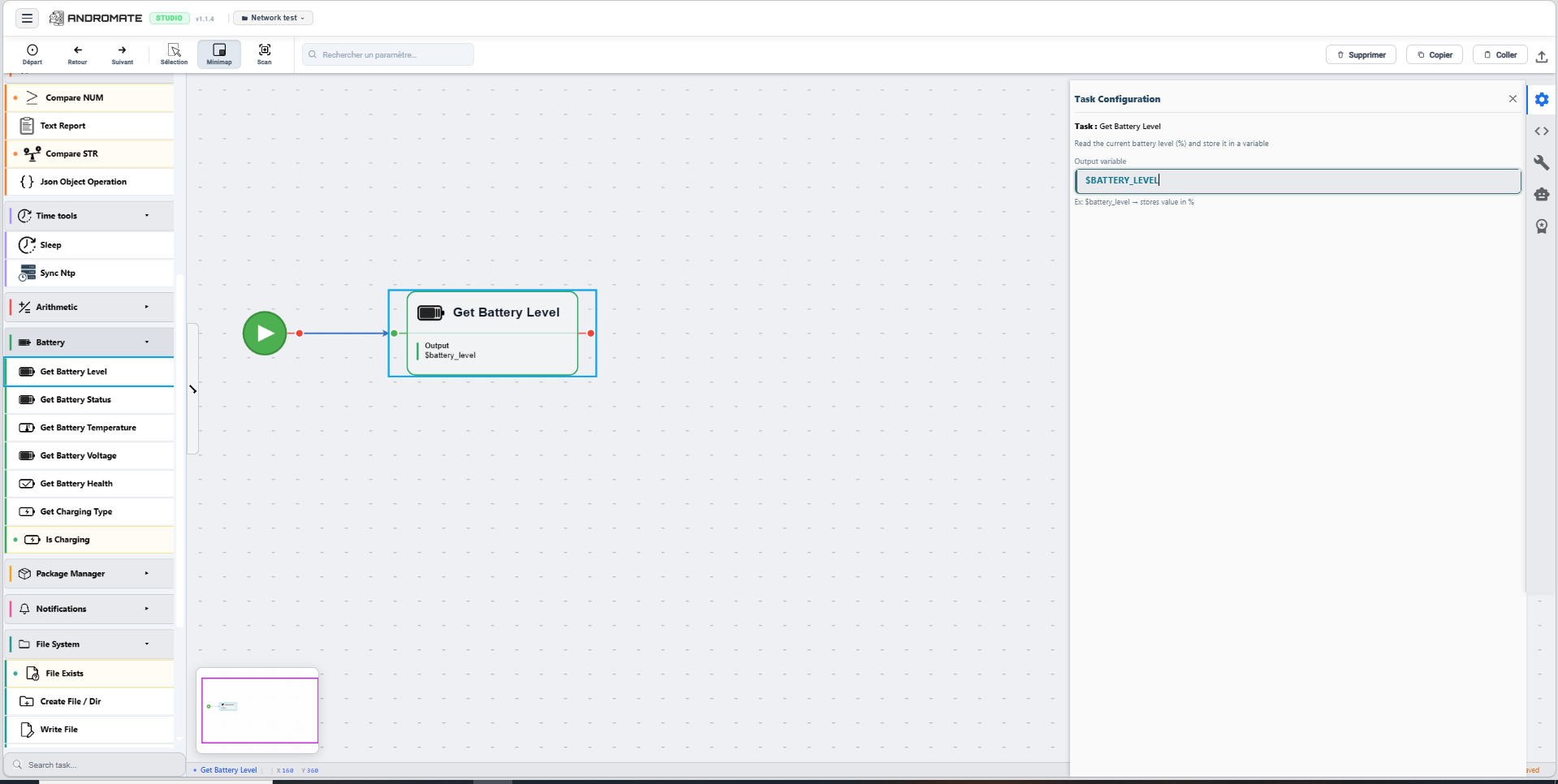
2. Let a task write into a variable
Many tasks expose an output variable field of their own - whatever variable name you put there gets registered with that task's result at runtime, overwriting whatever value the variable had before.
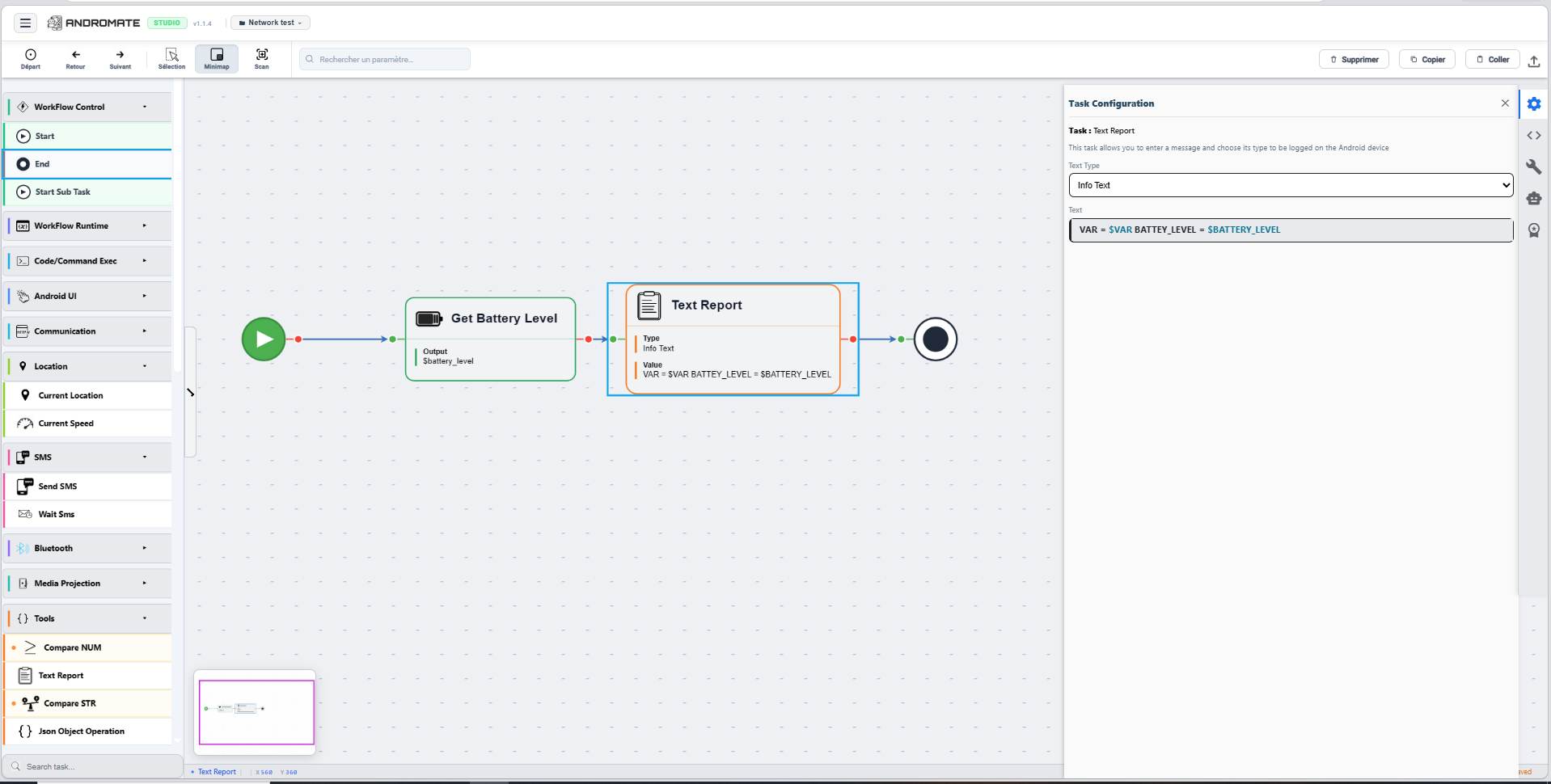
3. Use the variable in another task
Type $NAME directly inside any field that accepts text - mixed freely with literal text, no extra task needed:
Seeing it resolved at runtime
Running the workflow above (Start declares $VAR = 5 and $BATTERY_LEVEL empty -> Get Battery Level writes into $BATTERY_LEVEL -> Text Report reads both) produces this execution log:
16:25:03-| execute task task
16:25:03-|| Base Task: Reading battery level...
16:25:03-|| result = 23
16:25:03-|| end Base Task: Battery level read
16:25:03-|| Base Task: text report task
16:25:03-|| VAR = 5 BATTEY_LEVEL = 23
16:25:03-|| end Base Task: text report task
16:25:03-| end task task
$VAR resolves to 5 - its Start default, untouched by any task. $BATTERY_LEVEL resolves to 23 - the live value the Get Battery Level task wrote, overriding the empty default it had at Start.
Note
Built-in special variables (${NAME}, curly braces) are a different mechanism - resolved automatically by the runtime, no Start declaration needed. See Special variables vs. declared variables.
Saving
Studio has no visible Save button in the toolbar: open the menu (hamburger icon) and click Sauvegarder (or Sauvegarder sous to save as a copy). Every save increments the workflow's version - see the Version column on the Workflows list.
What's next
- Variables in Workflows - the full reference, at the JSON level
- Task Palette - every task category available to drag onto the canvas
- Tasks Overview - every task's parameters
- Run a Workflow - attaching it to a job and launching it