Run a Workflow
A workflow does not run on its own: a job runs it, on one or more devices. This page explains what happens between clicking launch and getting a result, and what to do when something goes wrong.
Before you launch
- The job must have a workflow attached. A job without one shows a warning badge and cannot be launched (see Tests / Scripts).
- Pick devices that show Connected in Devices. A disconnected device will not pick the job up, and its execution will end as timed out.
Launch
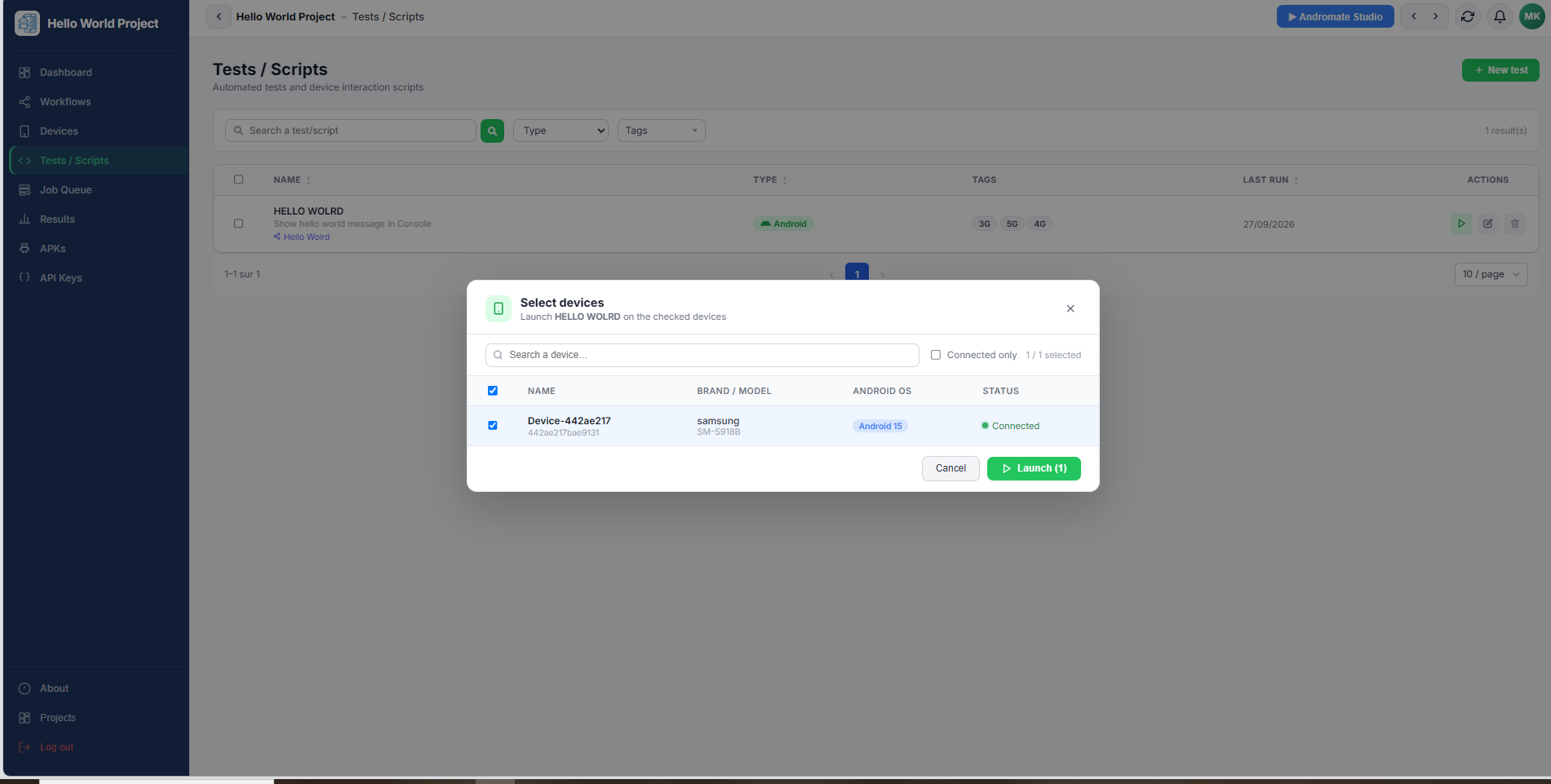
From the portal, open Tests / Scripts, click the run icon of the job, then select one or more connected devices in the device picker and confirm.
The same launch is available through the API: see Run a Job.
One execution is created per selected device. Launching a job on three devices creates three independent executions, each with its own state and result.
What happens next
- Each execution starts as Pending and is sent to its device in real time. If the device does not react within about 30 seconds, a push notification is sent as a fallback.
- When the device picks it up, the execution becomes Running. At that exact moment the device downloads the workflow, so it runs the latest saved version of the workflow, not the version that existed when you clicked launch.
- When the workflow finishes, the execution ends as Success or Failure.
| State | Meaning |
|---|---|
| Pending | Launched, waiting for the device to pick it up |
| Running | The device is executing the workflow |
| Success | The workflow finished |
| Failure | The workflow ended in error |
| Timed out (Pending) | The device never picked it up in time |
| Timed out (Running) | The device picked it up but never reported an end |
Note
Editing and saving a workflow after an execution has started does not affect that execution: it keeps running the version its device received.
Follow the execution
- Job Queue shows the live state of every launched execution.
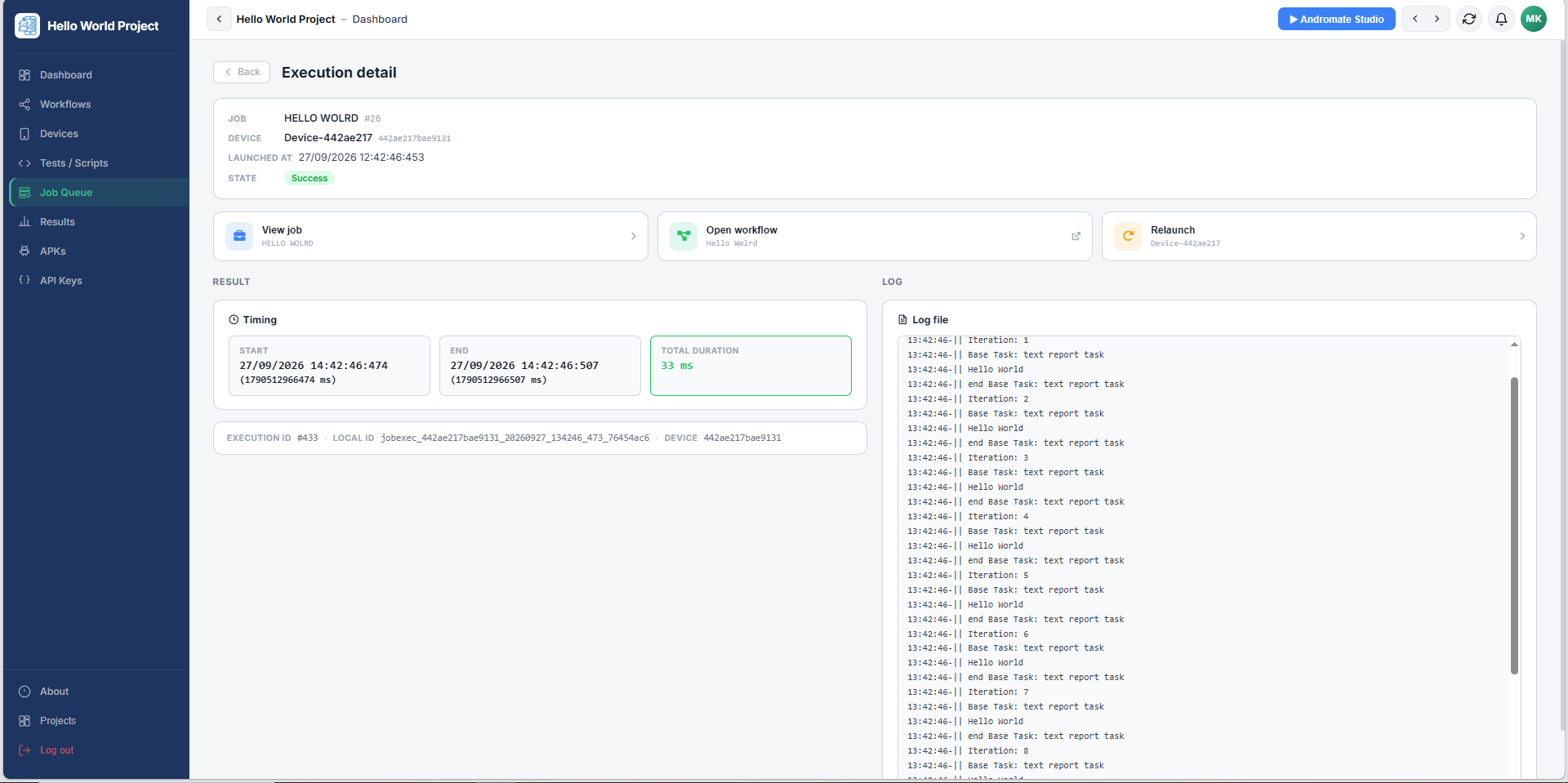
- Click an execution to open its detail page: state, device, timing, the log, and any KPIs or exceptions raised.
- Results keeps the full history once executions are finished.
When something goes wrong
Timeouts. An execution that stays Pending or Running too long is marked as timed out. The limit is 60 minutes by default, counted from the moment of the launch. A background check runs every 15 minutes, so the timed out state can appear up to 15 minutes after the limit is reached.
Retry. A timed out execution can be retried: the Retry button appears on its detail page, and on the Dashboard in the To retry list. Retrying puts the same execution back to Pending and sends it to the device again, without creating a new execution.
Failure. A failed execution cannot be retried. Read its log and exceptions on the detail page to find the failing task, fix the workflow, and launch the job again.
What's next
- Job Queue and Results: the screens used to follow executions
- Run a Job and Execution State: launching and polling from the API
- FAQ